WordPress Audio Download Protection became something I started paying attention to after uploading several audio files to a WordPress site. The files were intended for listening only, but the default player still exposed a download option through the three-dot menu.
For public podcasts this may not matter much, but private lessons, premium audio content, music samples, and member-only recordings are different. When visitors can download the original file directly, the content can easily spread outside the site.
This article covers two practical ways to implement WordPress Audio Download Protection. One uses a simple HTML attribute inside the block editor, while the other applies protection across all audio players with a plugin.
Table of Contents
Environment Summary
This test was performed on:
- WordPress Block Editor
- OpenLiteSpeed Server
- LiteSpeed Cache
- Standard WordPress Audio Block
- WPShield Content Protector
The issue appeared regardless of the web server. The download menu was generated by the browser’s audio player controls, not by OpenLiteSpeed itself.
Why the Download Option Appears
When an audio file is uploaded through WordPress, the player is usually inserted with the browser’s default controls.
That default behavior often includes a download option hidden inside the three-dot menu. Many site owners don’t notice it until someone points out that the audio can be saved directly.
The situation became easier to notice after reviewing several older audio posts. Every player contained the same download option because no download restrictions had been added during publishing.
Checking the Existing Audio Player
Before making any changes, it helps to confirm whether the download menu is visible.
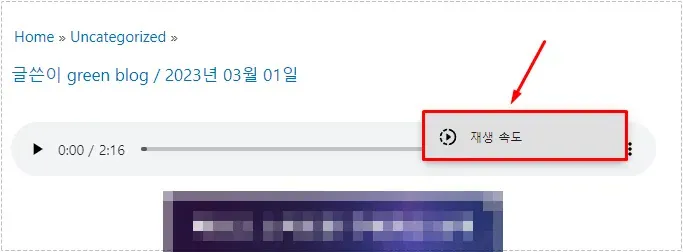
The three-dot menu on the player may contain both playback speed controls and a download button.
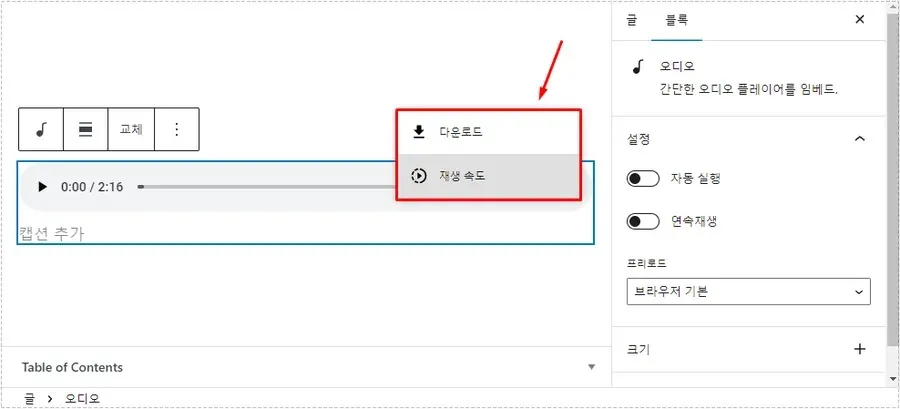
If the download menu appears here, visitors can save the original audio file directly from the browser.
WordPress Audio Download Protection Through HTML
For sites with only a few audio files, editing the player HTML is usually the fastest approach.
Inside the audio block menu, switch the block to HTML editing mode. This allows direct access to the audio element used by the player.
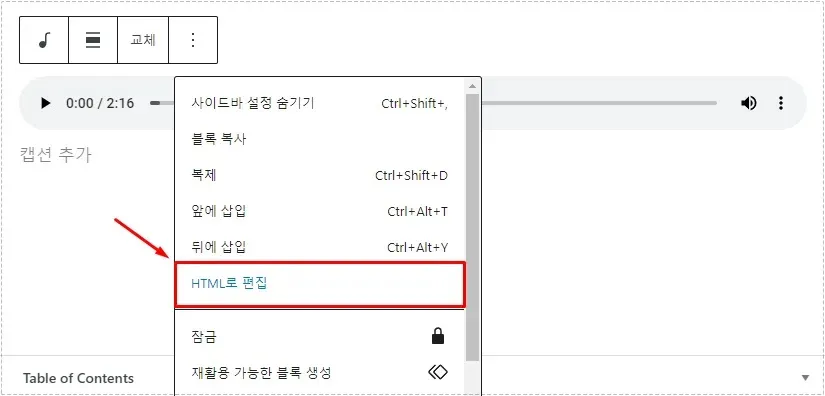
Some themes and editor versions may display a slightly different path to the same editor.
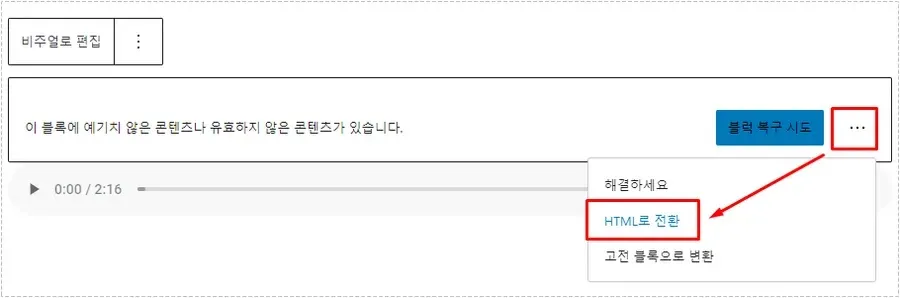
After entering HTML mode, locate the audio tag and add the following attribute:
controlslist="nodownload"
This small modification is often enough to enable basic WordPress Audio Download Protection without installing any additional plugin.
What If WordPress Shows a Block Error?
One confusing part appears after saving the modified code.
WordPress may display a warning stating that the block contains unexpected or invalid content. At first glance, it looks like the code failed.
Avoid using the automatic recovery option immediately. Recovering the block often removes the custom attribute that was just added.
Returning to HTML editing mode usually preserves the code and allows the player to continue functioning normally.
Verifying WordPress Audio Download Protection
After saving the post, reload the page and open the player menu again.
The download item should disappear while standard controls such as playback speed remain available.
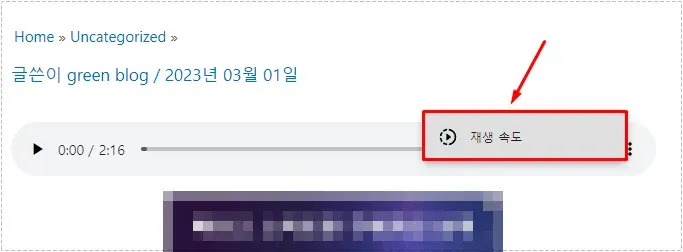
This confirms that WordPress Audio Download Protection is active at the player level.
Using WPShield for Multiple Audio Files
The HTML method works well for a small number of recordings. Once a site contains dozens or hundreds of audio files, manual editing becomes difficult to maintain.
In that situation, a plugin-based solution is easier.
WPShield Content Protector includes an Audio Protector module that can disable audio downloads globally.
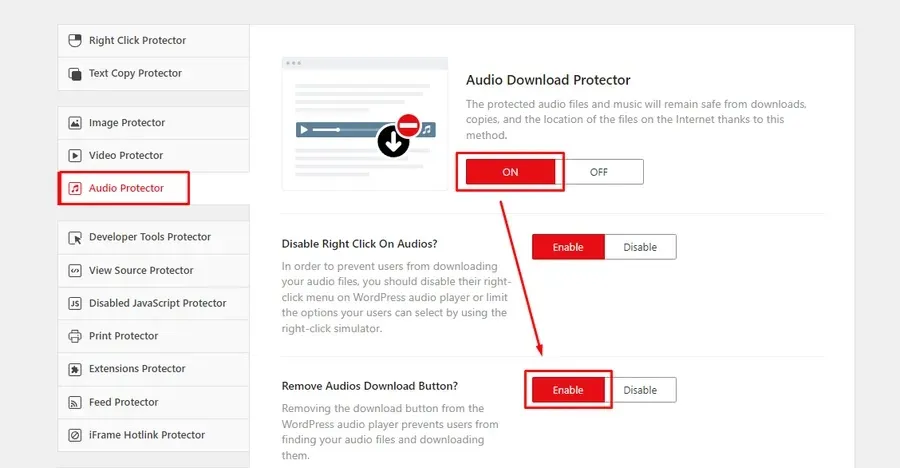
Instead of modifying every audio block individually, the plugin applies WordPress Audio Download Protection across the entire site.
Installing the Plugin
The free edition already includes basic protection features.
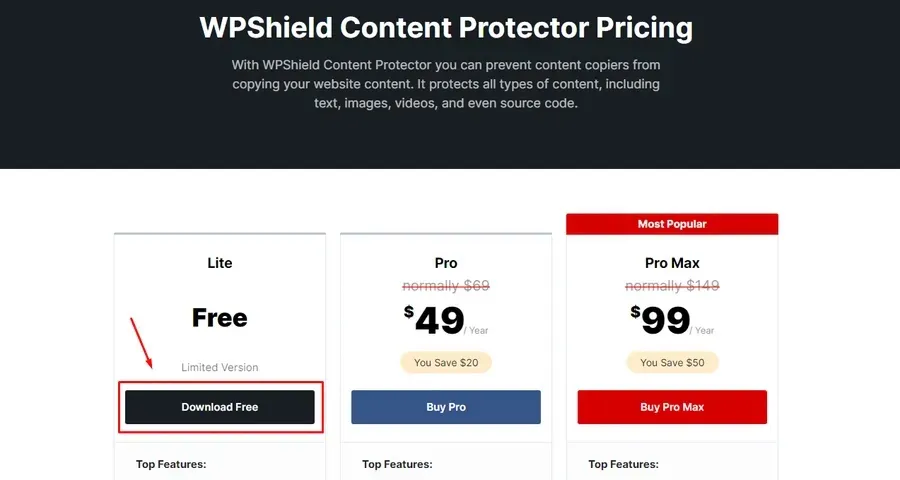
For larger content libraries, this approach dramatically reduces repetitive maintenance and keeps protection settings consistent.
Changes After Applying the Fix
After enabling WordPress Audio Download Protection, several noticeable changes appeared:
- Download buttons disappeared from supported players
- Casual file sharing became less convenient
- Original audio files were less exposed
- Site content remained under better control
- Visitors still retained normal playback functionality
It is important to remember that no browser-based solution provides absolute protection. Advanced users can still inspect network requests and locate media files. The goal is to prevent simple downloads rather than create perfect DRM.
Problem Cause Analysis
The root of the issue is not OpenLiteSpeed, LiteSpeed Cache, or WordPress itself.
The download option originates from browser audio controls. Because of that, cache purges, CDN settings, and server optimization rarely affect the behavior.
The fix comes from either:
- modifying the audio element directly
- applying a protection layer through a plugin
Once either method is used, WordPress Audio Download Protection becomes much easier to manage.
FAQ
Does WordPress Audio Download Protection completely prevent downloads?
No. It removes easy download methods but cannot stop advanced users from accessing media files through browser developer tools.
Is the HTML method better than the plugin method?
For a few audio files, HTML editing is faster. For larger sites, the plugin method requires much less maintenance.
Can LiteSpeed Cache interfere with WordPress Audio Download Protection?
Normally no. If changes do not appear immediately, clearing LiteSpeed Cache may help refresh the player output.