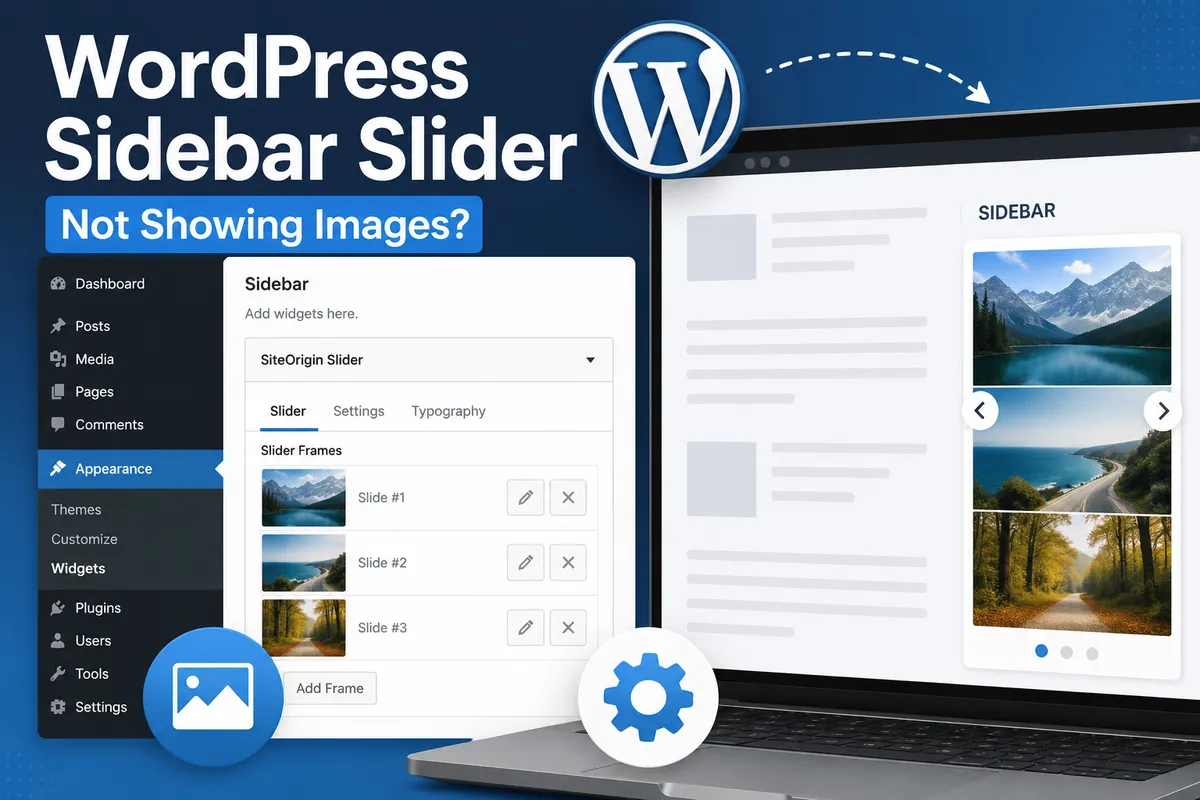
The WordPress Classic Widgets fix became necessary when the block-based widget screen started feeling harder to manage than the older widget layout. In my case, the widget area itself was not completely broken, but the interface felt less predictable when adjusting sidebar items, search widgets, and footer blocks.
This setup was tested on a WordPress site running Astra, OpenLiteSpeed, and LiteSpeed Cache. The issue was not a server error or a theme failure. It was mostly a workflow problem caused by the newer block widget editor, especially when older themes, widget-based layouts, or familiar sidebar settings were still part of the site structure.
Table of Contents
Why I Wanted a WordPress Classic Widgets Fix
The block widget editor can work well for many sites, but it is not always the easiest option when the layout depends on traditional widget areas. When the sidebar or footer is already built with older widgets, switching everything into a block-style interface can make simple changes feel slower.
The WordPress Classic Widgets fix is useful when you want the widget screen to return to the previous list-based layout. Instead of rebuilding the sidebar, the goal is to make the widget management screen easier to control again.
The Plugin Method Was the Fastest Option
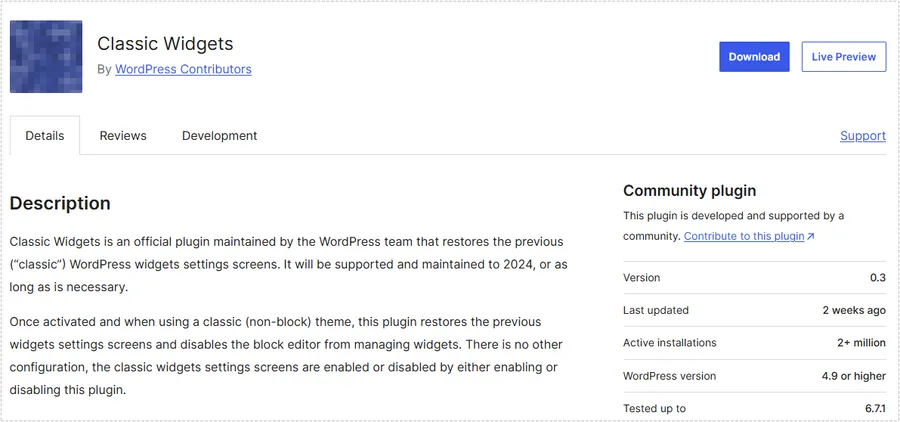
The simplest way to apply a WordPress Classic Widgets fix is to use the official Classic Widgets plugin. After installing and activating it, the widget screen returns to the older interface without needing additional settings.
This method is safer for users who do not want to edit theme files. It also makes testing easier because the change can be reversed by disabling the plugin.
What Changed After Activating Classic Widgets
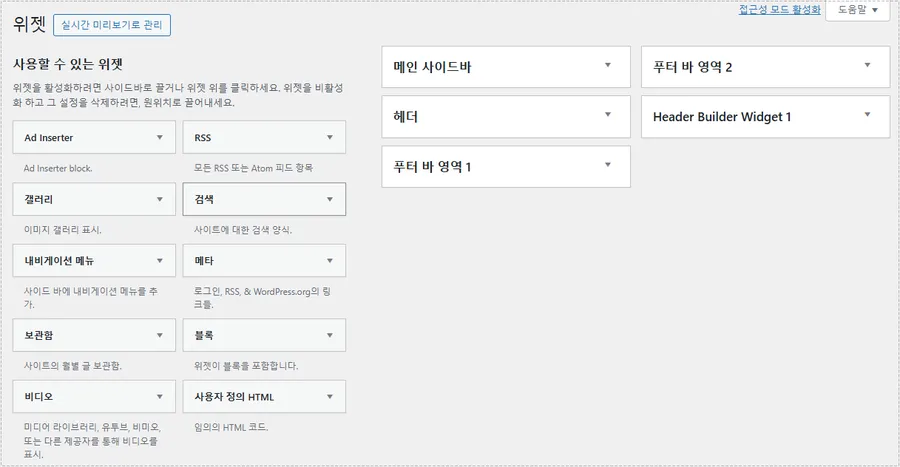
After the plugin was enabled, the widget page returned to the older layout. The available widgets appeared on the left, while the sidebar, header, and footer widget areas appeared on the right.
This made the widget structure easier to understand. Instead of editing each widget as a block, I could manage the sidebar and footer areas in the familiar WordPress widget screen.
Using Code Instead of a Plugin
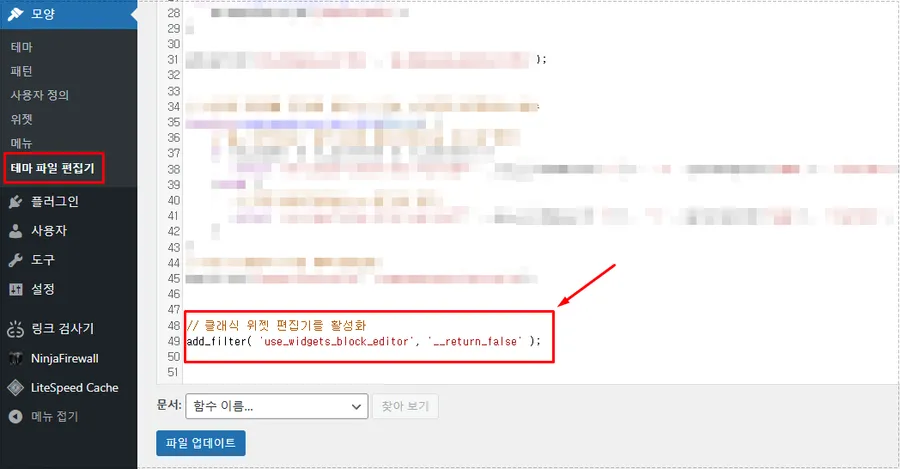
If you prefer not to add another plugin, the same WordPress Classic Widgets fix can be applied with a small code snippet. This is usually added to the theme’s functions.php file.
The code disables the block widget editor and brings back the classic widget interface.
add_filter( 'use_widgets_block_editor', '__return_false' );This method is lightweight, but it should be handled carefully. If the theme file is edited incorrectly, the site can throw an error. I usually prefer adding this through a child theme or a code snippet plugin rather than editing the main theme directly.
Checking the Writing Settings
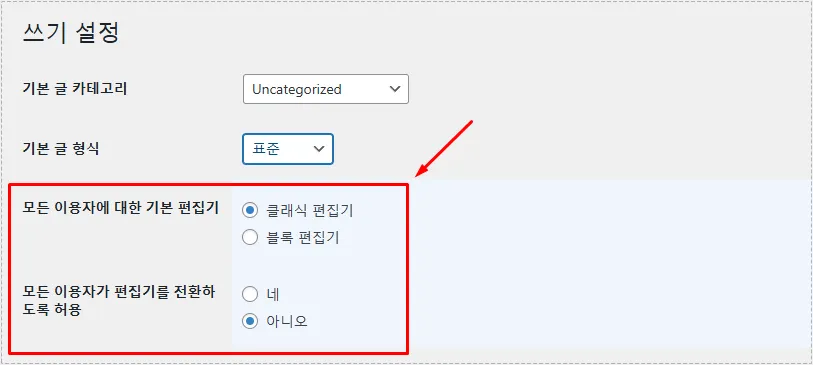
The writing settings are not the main fix for widgets, but they are still worth checking when the editor behavior feels inconsistent. In this screen, WordPress shows whether the default editor is set to the classic editor or the block editor.
This does not replace the Classic Widgets plugin, but it helps confirm the overall editing environment. When troubleshooting editor-related behavior, checking this page can prevent confusion between post editing and widget editing.
Cache Behavior After the Change
On an OpenLiteSpeed site using LiteSpeed Cache, the widget editor itself usually changes immediately after applying the fix. However, the front-end layout may still show an older version until cache is cleared.
After applying the WordPress Classic Widgets fix, I cleared LiteSpeed Cache and checked the sidebar again. The widget management screen stayed stable, and the front-end output reflected the updated structure after cache purge.
Plugin or Code: Which One Should You Use?
For most users, the plugin method is the better first choice. It is easier to apply, easier to remove, and less risky than editing functions.php.
The code method is better when you want fewer plugins and already know how to manage theme files safely. Both methods lead to the same result: the block widget editor is disabled, and the classic widget screen returns.
Changes After the Fix
After applying the WordPress Classic Widgets fix, the widget screen became easier to manage. Sidebar and footer areas were clearer, older widgets behaved more predictably, and I did not need to fight with the block interface just to make small layout changes.
This is not a performance optimization by itself, but it can reduce layout mistakes. For sites running Astra, OpenLiteSpeed, and LiteSpeed Cache, keeping the widget structure simple also makes cache checks and layout testing easier.
FAQ
Does Classic Widgets still work with modern WordPress?
Yes. The Classic Widgets plugin still restores the previous widget management screen on WordPress sites that support it.
Is the plugin method better than the code method?
For most users, yes. The plugin method is safer because it avoids direct theme file editing.
Does LiteSpeed Cache affect the widget editor?
Usually no, but LiteSpeed Cache can delay front-end layout changes from appearing. Clear the cache after changing widget settings.
Can I switch back to the block widget editor later?
Yes. Disable the plugin or remove the functions.php code, then clear cache and check the widget screen again.