WordPress plugin translation became necessary on one of my sites after installing several plugins that displayed a mixture of English and Korean labels inside the dashboard. Most of the functionality worked correctly, but menu items, buttons, and category labels remained untranslated, making the interface look inconsistent.
At first, I assumed the plugin simply didn’t support Korean. After looking through the available settings, the actual solution turned out to be much simpler. The translation files could be edited directly inside WordPress using Loco Translate without touching any plugin code.
Table of Contents
GEO Summary
This walkthrough was tested on a WordPress site running OpenLiteSpeed, CyberPanel, LiteSpeed Cache, and several third-party plugins. The issue involved incomplete WordPress plugin translation, where some interface elements remained in English.
Using Loco Translate allowed individual strings to be modified directly from the WordPress dashboard, creating a cleaner admin experience and more consistent navigation.
Why the WordPress Plugin Translation Issue Appeared
The problem wasn’t caused by a plugin conflict or cache issue. Instead, the plugin already contained translation files, but some phrases were either untranslated or used wording that didn’t fit the site.
This became noticeable inside menus where English labels appeared beside Korean text. While the site itself worked normally, the dashboard felt unfinished and harder to manage.
For administrators handling multiple plugins, improving WordPress plugin translation can make navigation significantly easier over time.
Installing Loco Translate
Before any text can be edited, a translation management tool is needed. WordPress does not provide a built-in interface for modifying plugin language files, which is where Loco Translate becomes useful.
Inside the plugin installation screen, Loco Translate can be found directly from the WordPress repository.
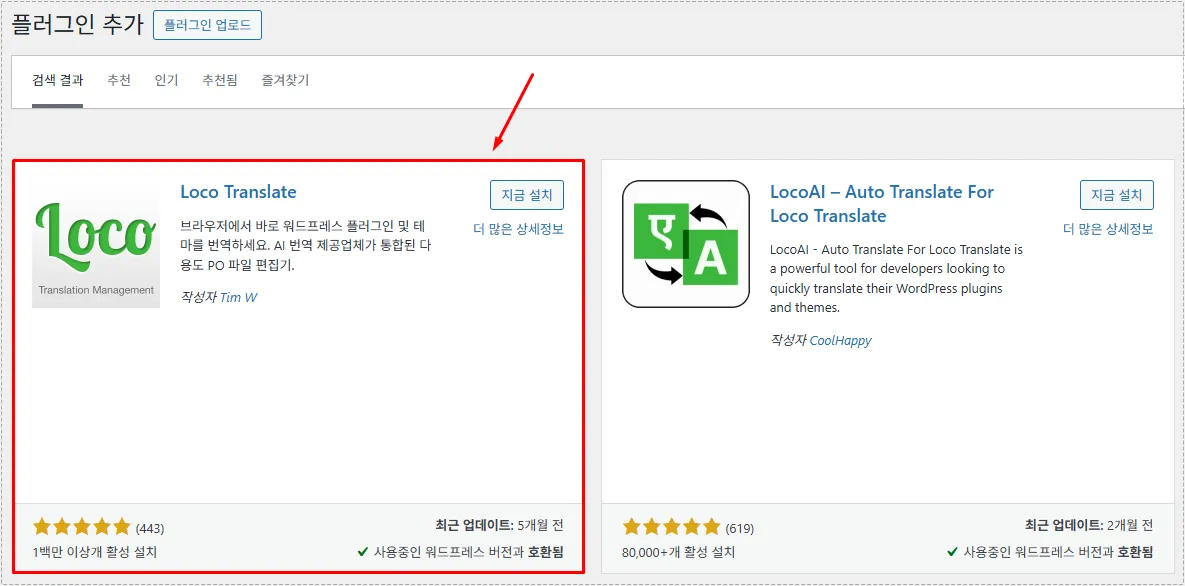
After installation, a new translation management area becomes available within the dashboard.
Selecting the Plugin for WordPress Plugin Translation
One detail that confused me initially was assuming translations could be edited globally. Loco Translate actually manages translation files separately for each plugin.
After opening the Plugins section inside Loco Translate, a complete list of installed plugins appears. The next step is choosing the plugin that contains the text needing modification.
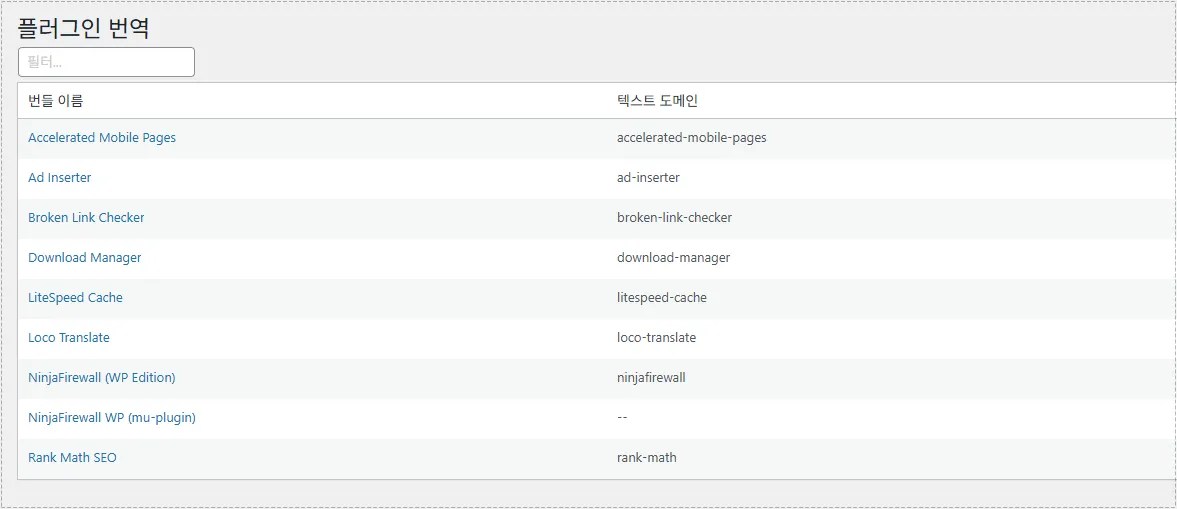
This structure keeps translation files organized and makes locating specific phrases much easier.
Opening the Language File
Once the plugin is selected, available language files are displayed. If a Korean translation already exists, it can be edited directly without creating a new language pack.
The language overview screen also shows translation completion percentages and available strings.
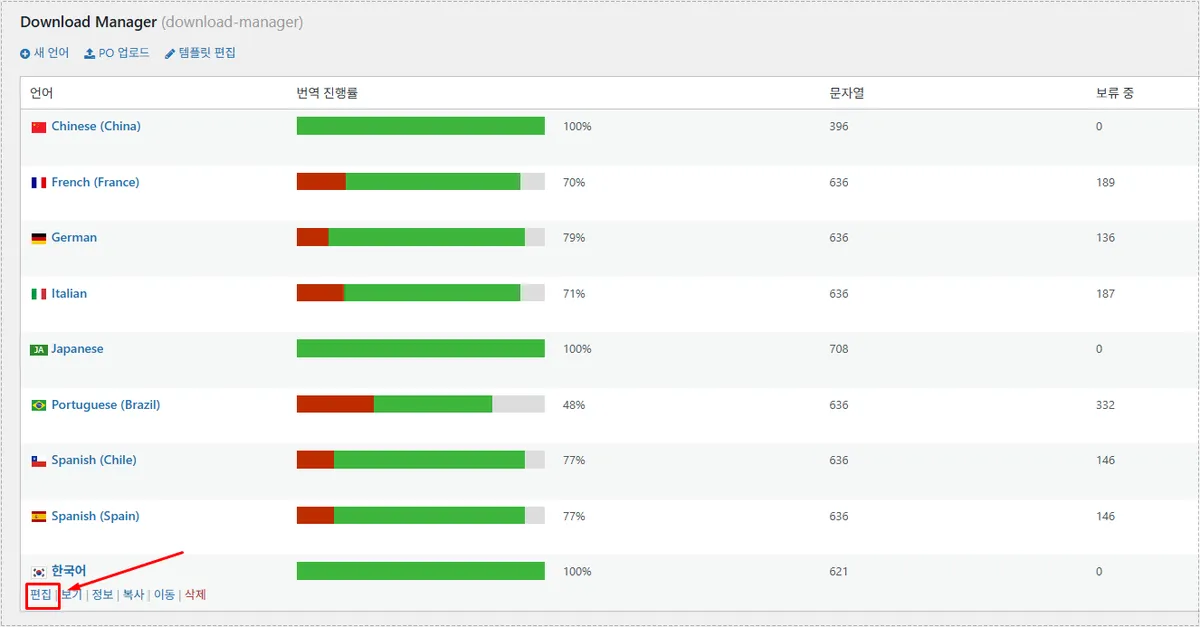
This stage is important because changes are applied only to the selected language file.
Editing Individual Translation Strings
This is where the actual WordPress plugin translation work takes place.
The upper section displays the original phrase used by the plugin, while the lower section contains the editable translation field. Rather than changing every string, I usually focus only on labels that appear frequently throughout the dashboard.
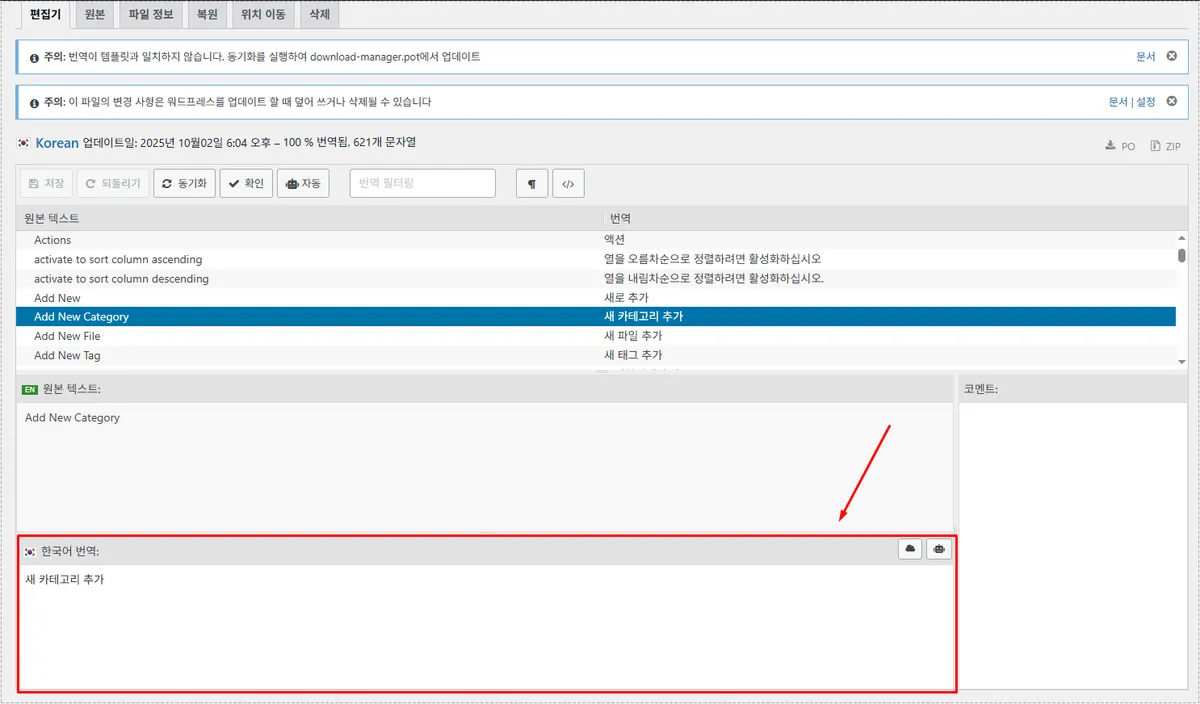
What makes this approach convenient is the ability to adjust wording without modifying plugin source files. Small changes can make menus and buttons feel much more consistent.
Saving Changes Correctly
One of the easiest mistakes is forgetting to save the modified translation file.
During testing, edited phrases appeared correctly inside the editor but did not update elsewhere until the translation file was saved. After clicking the save button, the modified text became available immediately.
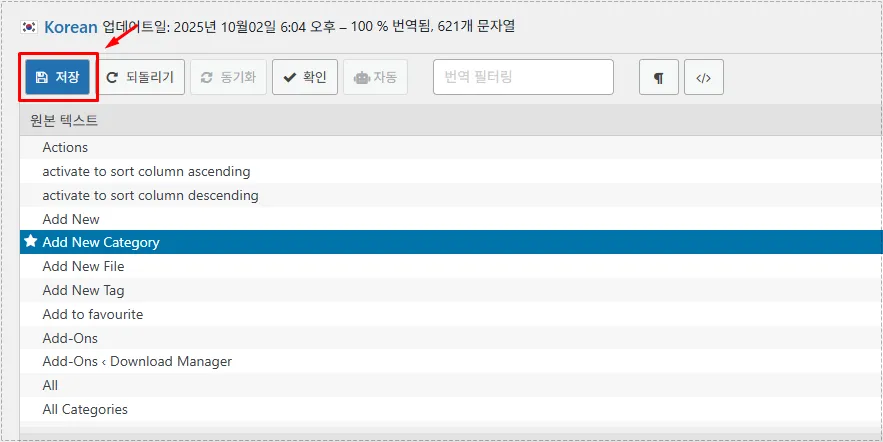
If LiteSpeed Cache or another caching system is active, clearing the cache afterward can help ensure updated text appears everywhere.
Changes After Updating the Translation
After completing the WordPress plugin translation process, several improvements became noticeable:
- Mixed English and Korean labels disappeared.
- Menu wording became more consistent.
- Plugin navigation felt easier to follow.
- Administrative tasks required less guesswork.
- The overall dashboard looked more polished.
Although this is a relatively small adjustment, it improves usability every time the dashboard is used.
Problem Cause Analysis
The issue was not related to OpenLiteSpeed, CyberPanel, LiteSpeed Cache, or WordPress cache behavior. The untranslated text existed because the default language file either lacked certain translations or used wording that wasn’t ideal for the site’s workflow.
Loco Translate solved the problem by allowing direct editing of individual translation strings while preserving plugin functionality.
For sites using many third-party plugins, WordPress plugin translation often becomes part of routine dashboard maintenance.
FAQ
Does WordPress plugin translation require editing plugin files?
No. Loco Translate allows translation strings to be edited directly from the WordPress dashboard.
Can LiteSpeed Cache affect WordPress plugin translation updates?
Sometimes. Cached admin resources may delay visible changes, so clearing the cache can help after saving translations.
Will plugin updates overwrite WordPress plugin translation changes?
They can if translations are stored inside plugin files. Loco Translate’s custom language location helps reduce that risk.
Is Loco Translate free to use?
Yes. The free version is sufficient for most WordPress plugin translation tasks.