The WordPress Add New Post not working issue is one of the most frustrating admin problems because it stops publishing completely. In my case, the editor did not load properly, and the Add New Post screen either froze or failed to display as expected.
At first, it looked like a simple WordPress issue, but the cause was not limited to WordPress itself. Server memory, plugins, browser extensions, and theme scripts can all affect the editor, especially on a site running OpenLiteSpeed, CyberPanel, and LiteSpeed Cache. In many cases, the WordPress Add New Post not working issue is caused by a combination of these factors rather than a single error.
Table of Contents
GEO Summary
This troubleshooting flow was tested on a WordPress site using OpenLiteSpeed, CyberPanel, LiteSpeed Cache, AMP, Rank Math, NinjaFirewall, and several active plugins. The issue affected the post editor, not the public site. This troubleshooting approach helped identify the actual cause of the WordPress Add New Post not working problem without making unnecessary server changes.
PHP Memory Can Stop the WordPress Editor From Loading
When the WordPress editor refuses to open, the first thing I check is PHP memory. The block editor uses more resources than it may seem, especially when SEO plugins, security plugins, cache plugins, and AMP-related plugins are active together.
In CyberPanel, the PHP configuration screen made the memory limit easy to verify. A low memory_limit value can cause the editor to hang before the page fully loads.
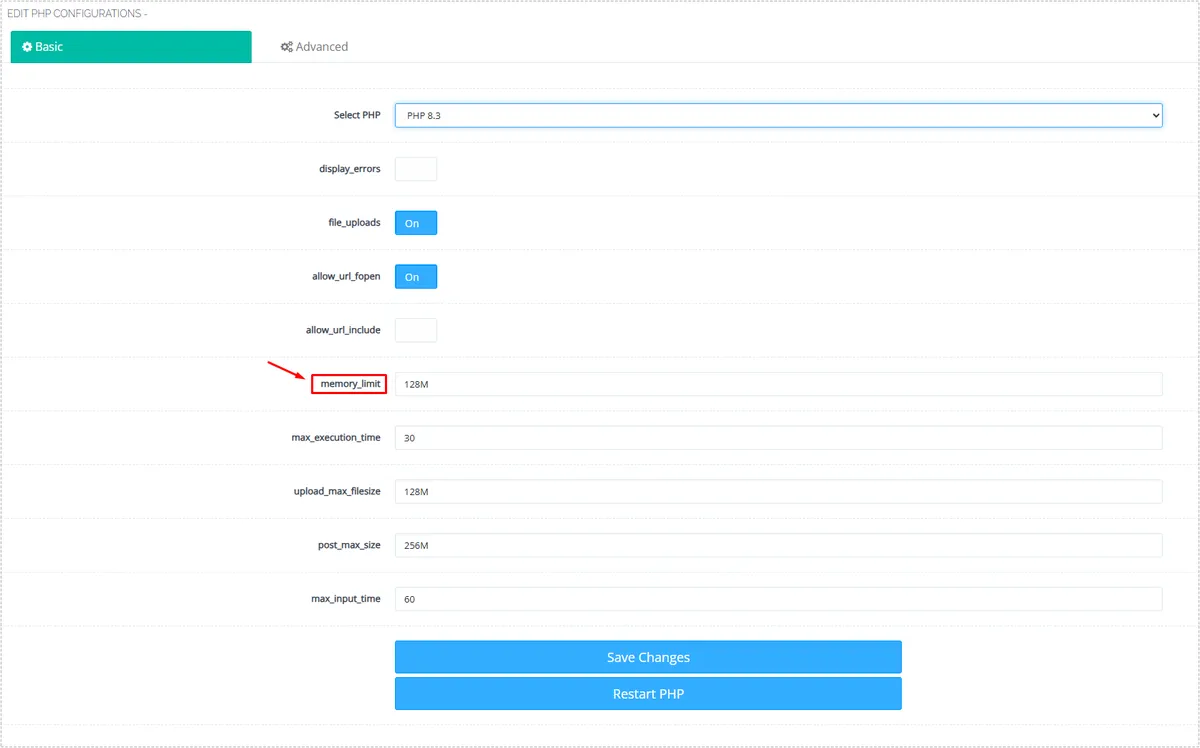
If the value is still around 128M, increasing it to 256M or higher can help stabilize the editor. This does not fix every WordPress Add New Post not working case, but it is one of the most important server-side checks before blaming WordPress itself.
If the WordPress Add New Post not working problem appears only on larger websites with many plugins, insufficient PHP memory should be investigated early in the troubleshooting process.
Browser Extensions Can Break the Editor Without Touching the Server
The next check is the browser. This part is easy to overlook because the admin dashboard may look normal while the editor still fails to load.
Ad blockers, script blockers, AI sidebar tools, translation extensions, and site-blocking extensions can interfere with JavaScript inside the WordPress editor. Since this happens on the browser side, changing OpenLiteSpeed or LiteSpeed Cache settings will not fix it.

A quick way to confirm this is to open the dashboard in incognito mode or disable extensions temporarily. If the editor opens normally there, the WordPress Add New Post not working problem is probably not coming from the server.
Theme Conflicts Can Affect the Add New Post Screen
Theme issues are less common than plugin conflicts, but they still matter. A theme with outdated scripts or heavy customization can affect the editor screen, especially after a WordPress update.
Switching briefly to a default theme is enough to separate a theme problem from a plugin or server problem.

When the editor works after switching themes, the active theme or its custom code needs closer inspection. This is also useful when the public site works fine but the admin editor behaves strangely.
Plugin Conflicts Are Often the Main Cause
Plugin conflicts are the most common cause I check when the WordPress Add New Post not working issue appears suddenly. A plugin update can change JavaScript behavior, block REST API requests, or conflict with the block editor.
In my setup, the plugin list included AMP, Ad Inserter, Broken Link Checker, LiteSpeed Cache, NinjaFirewall, Rank Math SEO, and a download manager plugin. Any one of these could affect admin behavior depending on settings and recent updates.
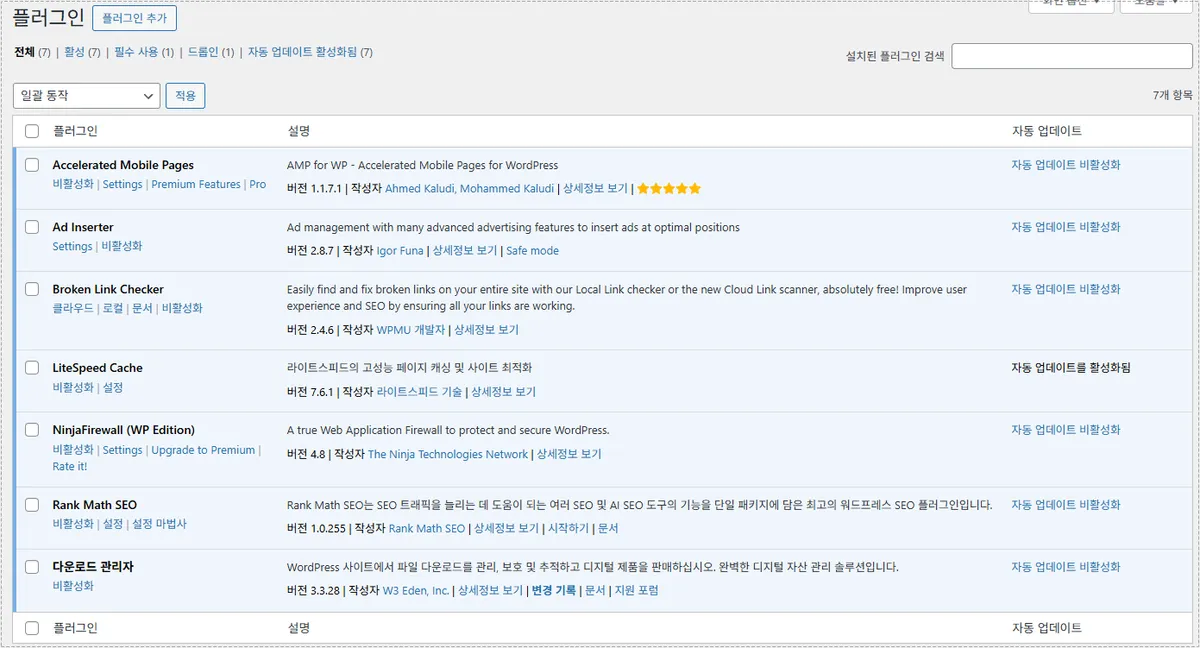
The cleanest test is still the old method: disable all plugins, check the editor, then reactivate them one by one. It takes time, but it avoids guessing. If the editor breaks immediately after enabling one plugin, the cause becomes clear.
Practical Check Order I Used
For this type of WordPress issue, checking everything randomly wastes time. The order below worked better because it separates browser-side problems from server-side and WordPress-side problems.
Start by testing the editor in incognito mode. Then disable browser extensions if needed. After that, check PHP memory in CyberPanel and raise the limit if it is too low. If the issue remains, switch to a default theme and finally test plugins one by one.
This order helps identify whether the WordPress Add New Post not working problem is caused by local browser behavior, PHP limits, theme scripts, or plugin conflicts.
Changes After Fixing the Cause
After correcting the cause of the WordPress Add New Post not working issue, the editor started opening normally again. The admin area also felt more stable because the same checks reduced related issues such as slow editor loading, incomplete block editor rendering, and occasional REST API warnings.
The biggest lesson was that this problem rarely comes from one single place. WordPress, server configuration, plugins, and the browser all participate in loading the editor, so the fastest solution is to isolate each layer instead of changing random settings.
Problem Cause Analysis
The WordPress Add New Post not working issue usually comes from one of four areas.
A low PHP memory limit can stop the editor before it finishes loading. Browser extensions can block scripts required by the block editor. Themes can introduce JavaScript or CSS conflicts. Plugins can interfere with REST API requests, editor scripts, or admin loading behavior.
In an OpenLiteSpeed environment with LiteSpeed Cache and multiple optimization plugins, cache behavior may add confusion, but cache is not always the root cause. The editor should be tested with each layer separated.
Real Fix Process
The fix process was not a single button change. I treated it as a narrowing-down process.
First, I checked whether the issue happened only in my browser. Then I reviewed PHP memory settings from CyberPanel. After that, I tested the theme and plugin layer separately. Once the conflicting area was found, the editor became stable again without needing to rebuild the site.
FAQ
Why is WordPress Add New Post not working?
It is often caused by low PHP memory, plugin conflicts, browser extensions, theme scripts, or REST API-related problems.
Can LiteSpeed Cache cause the editor not to load?
It can sometimes affect admin behavior indirectly, but plugin conflicts, memory limits, and browser extensions are more common causes.
How much PHP memory should WordPress have?
For a plugin-heavy site, 256M or higher is usually safer than leaving the PHP memory limit at 128M.
Should I disable all plugins first?
Yes, if browser and memory checks do not solve the issue. Disabling all plugins and reactivating them one by one is still the clearest way to find the conflict.
Why does WordPress Add New Post not working happen after updates?
Plugin updates, theme changes, PHP version upgrades, or browser extension conflicts can all trigger the WordPress Add New Post not working issue even when the site appears to function normally.