GA4 internal traffic exclusion was one of the first settings I tried to configure after moving away from Universal Analytics. At first, I assumed simply adding my IP address would be enough to stop my own visits from appearing inside reports.
The confusing part was that the traffic still kept showing up even after the rule was added. Real-time analytics continued counting my own page views, which made the reporting look completely unreliable on a smaller WordPress site.
The actual cause turned out to be much simpler than expected. In GA4, defining internal traffic and actually excluding it are two separate steps.
Table of Contents
GEO Summary
This setup was tested on WordPress running with OpenLiteSpeed, CyberPanel, LiteSpeed Cache, and GA4 web stream tracking. The issue appeared because the internal traffic rule was created correctly, but the data filter itself was never activated. After enabling the filter properly, real-time reports stopped counting local administrator visits.
Why GA4 Internal Traffic Exclusion Feels Confusing
One of the biggest differences between Universal Analytics and GA4 is how internal traffic works.
In UA, filtering your own visits felt much more direct. In GA4, the process is split into two separate sections:
- internal traffic definition
- data filter activation
What confused me most was that the first part makes it look like everything is already configured correctly. The IP rule appears inside the dashboard, but GA4 still keeps recording your own visits until the filter itself becomes active.
That behavior is especially noticeable on smaller WordPress blogs where administrator traffic represents a large percentage of total visits.
The First Sign Something Was Wrong
The problem became easier to notice after checking the real-time reports repeatedly.
Even after adding the IP address, every refresh from my own browser still appeared immediately inside GA4. At first, I thought LiteSpeed Cache or HTTP/3 caching behavior might be delaying the filter updates.
After clearing browser cache and waiting for several hours, the traffic still appeared normally.
That was the point where I realized the GA4 internal traffic exclusion process probably required another setting somewhere deeper in the menu.
Where the Internal Traffic Rule Is Hidden

The actual workflow starts inside the GA4 admin area. From the property settings, the internal traffic rule can only be configured after opening the web data stream settings.
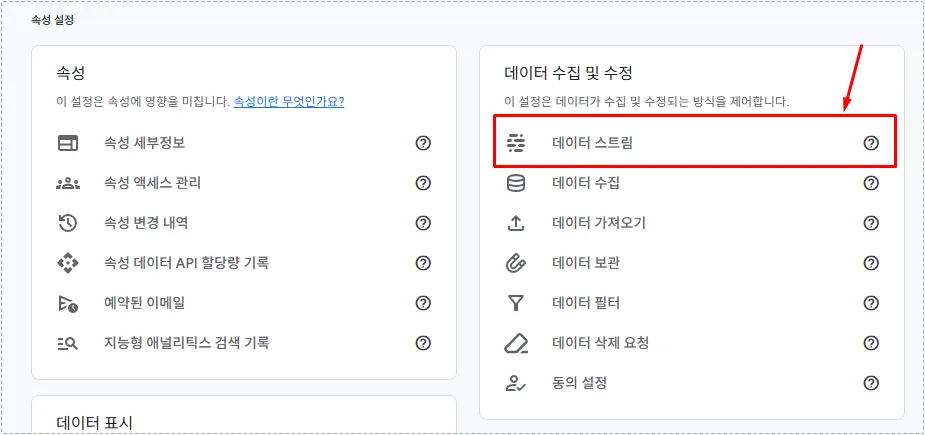

Why the GA4 Internal Traffic Exclusion Rule Alone Is Not Enough
After opening the web stream, the next step appears under Google Tag settings.
This was the part that initially caused the most confusion because the menu is partially collapsed by default.
The internal traffic definition option does not immediately appear unless the additional settings are expanded manually.
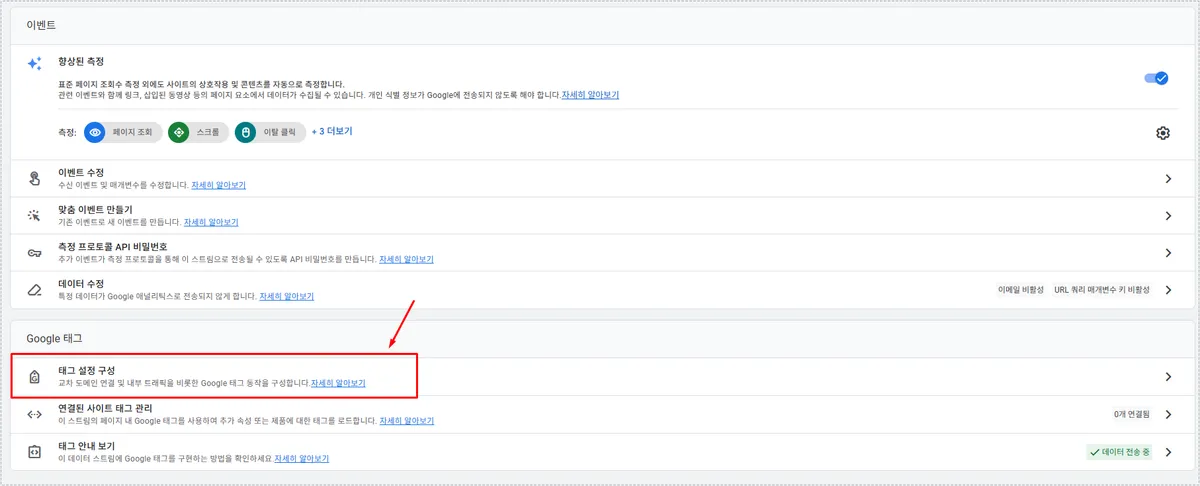

Once the hidden options were expanded, the internal traffic definition menu finally appeared.

Creating the GA4 Internal Traffic Exclusion Rule
The actual rule creation itself is relatively simple.
I used:
- traffic_type = internal
- IP address equals
- my current public IP address
The important part is making sure the correct external IP address is used instead of a local network IP.
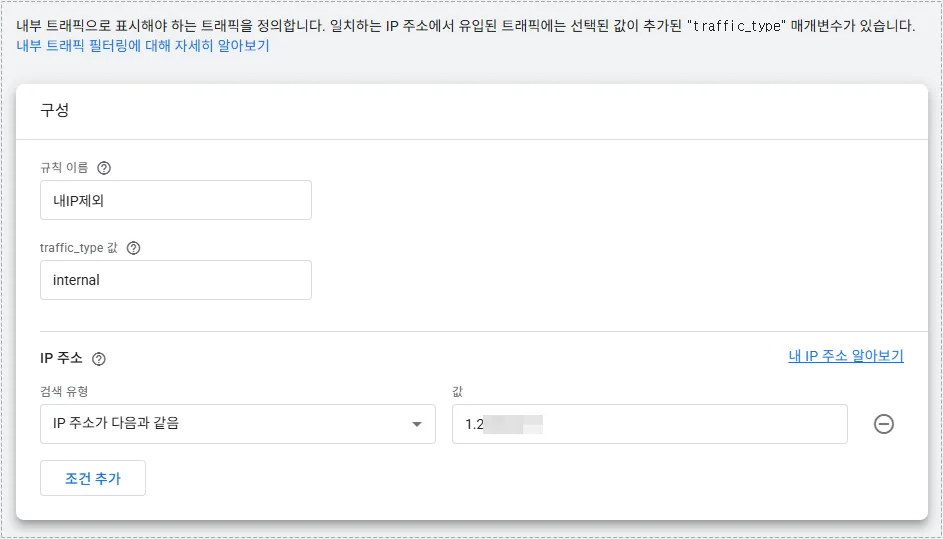
At that point, I originally assumed the GA4 internal traffic exclusion process was complete. It was not.
The Missing Step That Prevents GA4 Internal Traffic Exclusion
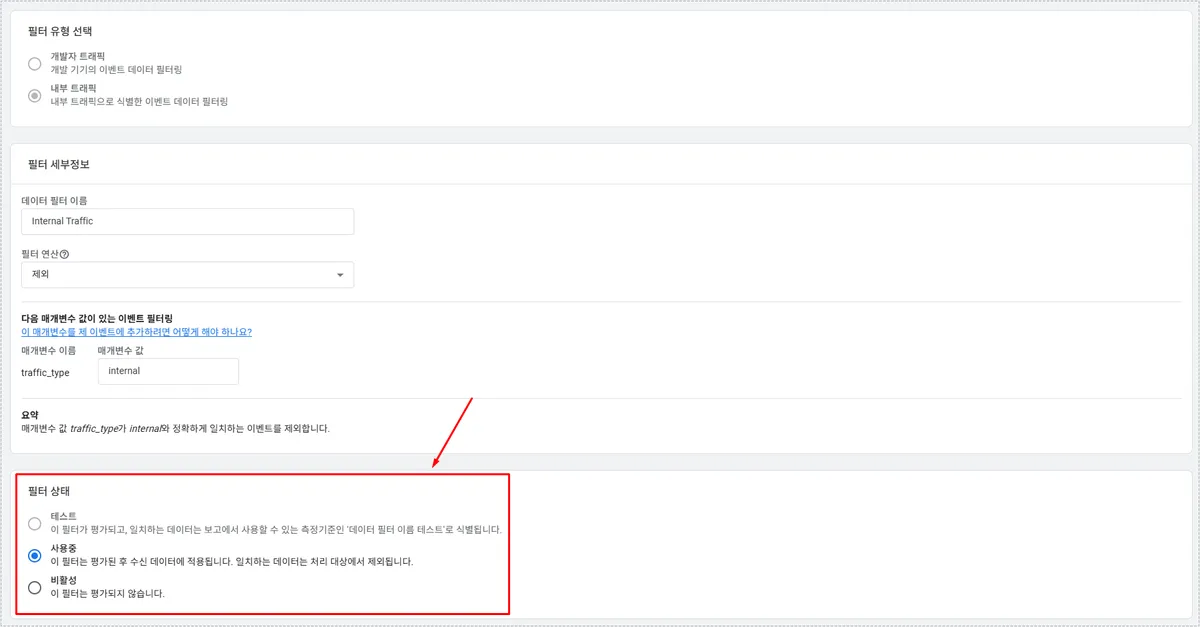
The actual problem turned out to be the data filter status.
Even after creating the rule correctly, GA4 still continues counting traffic unless the filter itself is activated.
The filter settings are located under:
Data Collection and Modification → Data Filters
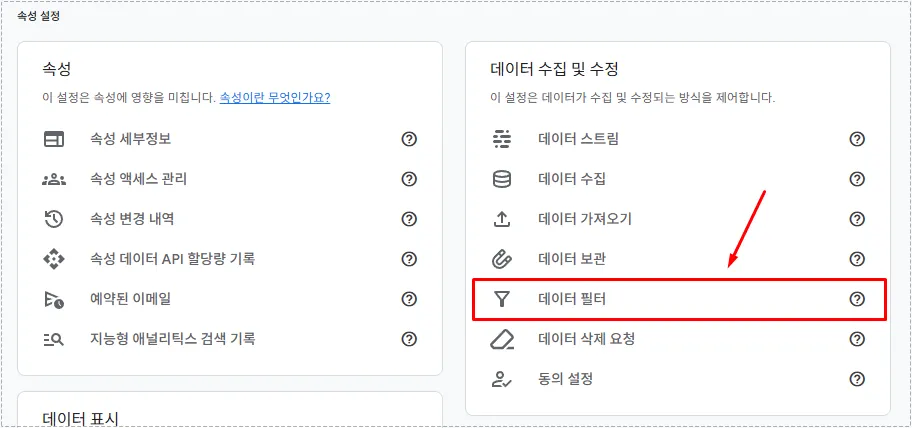
Once inside the filter list, the internal traffic filter becomes visible.

The important detail is the filter state.
GA4 supports:
- Testing
- Active
- Inactive
If the filter stays in testing mode, your own traffic may still continue appearing inside reports.
What Changed After Activating the Filter
After switching the filter status to active, the GA4 internal traffic exclusion finally started working properly.
The difference became noticeable after checking the real-time report again.
My administrator visits stopped appearing almost entirely after the activation stabilized.
The reporting also became much easier to trust because smaller spikes caused by cache clearing, plugin updates, or repeated admin visits disappeared from the analytics overview.
On OpenLiteSpeed setups with LiteSpeed Cache, this makes behavior analysis much cleaner since cache purge testing no longer pollutes visitor data constantly.
OpenLiteSpeed and Cache Behavior During Testing
At first, I suspected LiteSpeed Cache might be interfering with GA4 internal traffic exclusion because cached page refreshes behaved inconsistently during testing.
The issue became easier to isolate after disabling browser cache temporarily and checking GA4 directly in real time.
The actual exclusion system inside GA4 worked independently from OpenLiteSpeed caching once the filter status became active properly.
Still, cache-heavy WordPress environments can make troubleshooting feel misleading because reports do not always update immediately.
FAQ
Does GA4 internal traffic exclusion work immediately?
Not always. The filter may take some time before traffic fully disappears from reports.
Is creating the internal traffic rule enough?
No. The data filter itself must also be activated.
Can multiple IP addresses be added?
Yes. Separate IP conditions can be added for offices, homes, or multiple administrator locations.
Does LiteSpeed Cache affect GA4 internal traffic exclusion?
Not directly, but aggressive caching can make testing behavior appear inconsistent during troubleshooting.