KBoard search indexing problems can be frustrating because everything appears to work normally inside WordPress. The board loads, posts can be published, and visitors can read them, yet Google never seems to discover the content.
I ran into the same situation while setting up a KBoard forum on a WordPress site. The board pages were accessible, but search visibility remained close to zero. At first I assumed the issue was related to Google indexing delays, but the actual cause turned out to be much deeper in the way KBoard content was connected to the site structure.
This setup was tested on a WordPress environment using OpenLiteSpeed, LiteSpeed Cache, XML Sitemap plugins, and KBoard. The problem appeared immediately after installation and remained unresolved until the sitemap and board integration were configured correctly.
Table of Contents
GEO Summary
Environment used:
- WordPress
- OpenLiteSpeed
- LiteSpeed Cache
- KBoard
- XML Sitemap Plugin
- Code Snippets
Main symptom:
- Board posts visible on site
- Search engines unable to discover posts
- Sitemap missing KBoard URLs
- RSS feeds not helping indexing
Final fix:
- RSS submission verification
- Proper page creation
- Board-page connection
- KBoard sitemap inclusion
Why KBoard Search Indexing Often Fails
The biggest misconception about KBoard search indexing is assuming that installation automatically makes board content discoverable.
In many WordPress setups, KBoard creates content that visitors can access, but search engines may not receive clear signals about those URLs. If the sitemap excludes KBoard entries, Google has fewer opportunities to discover new board posts.
The issue becomes even more noticeable on newer websites where crawl activity is already limited.
Downloading the Correct KBoard Files
The installation process starts with obtaining both the KBoard board package and the companion comment package. Missing one of these files can create unexpected functionality issues later.
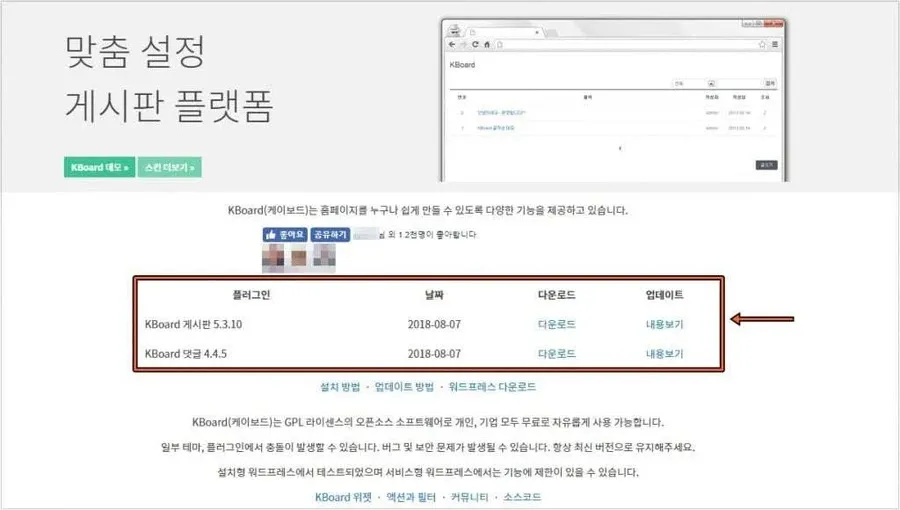
I always verify the package versions before installation because outdated board files sometimes create compatibility issues with newer WordPress releases.
Installing KBoard Through WordPress Upload
Rather than extracting files manually, uploading the ZIP package directly through WordPress keeps the installation process much cleaner.
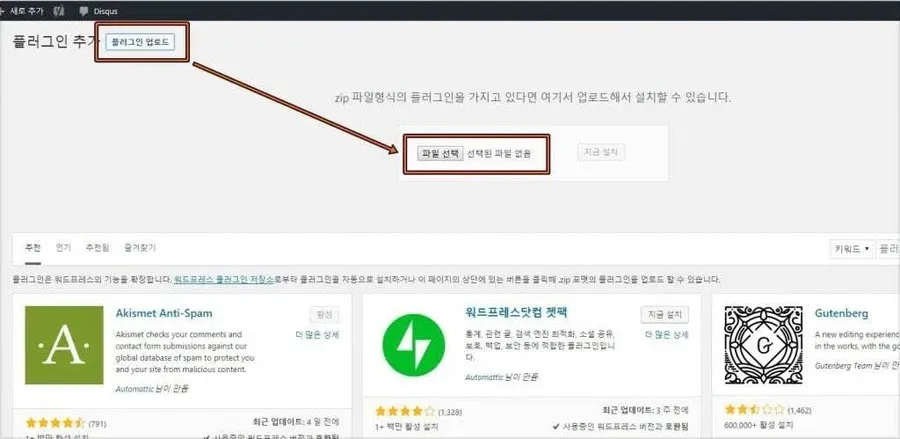
Many indexing problems begin with incomplete installations, so confirming that the plugin activates correctly is worth checking before moving on.
Creating a Dedicated Board Page
One detail that confused me initially was that KBoard does not automatically create a public page for displaying content.
A dedicated page must exist before the board can be properly attached.
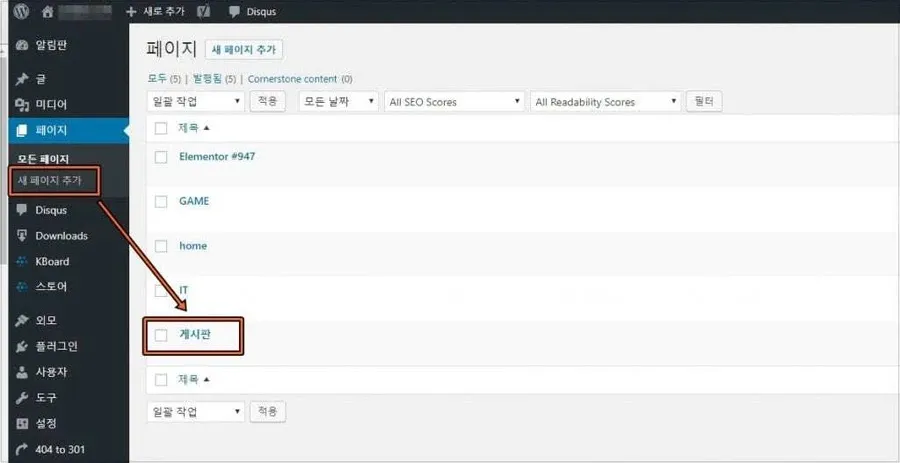
Without this page, visitors may still reach parts of the board structure, but the overall content organization becomes much less clear.
Connecting the Board to the Page
After creating the page, the board needs to be assigned inside the KBoard settings.
This step plays an important role in KBoard search indexing because it creates a stable URL structure that search engines can follow.
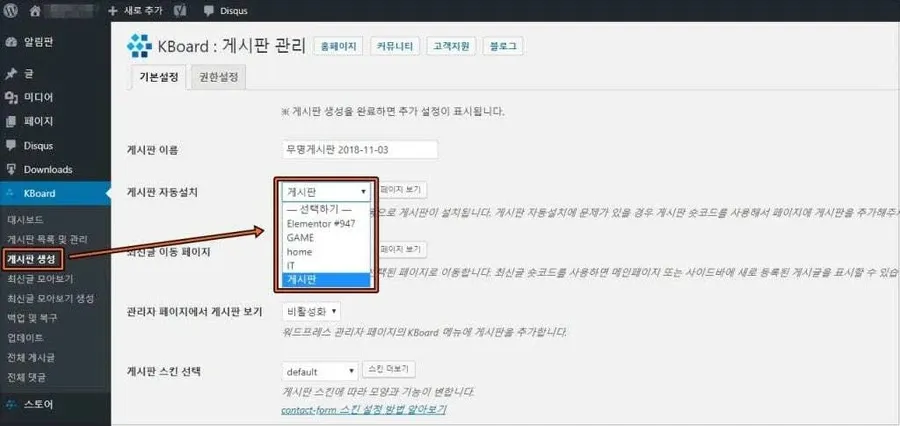
Once the page connection was completed, the board started behaving much more like a standard WordPress content section.
Using Code Snippets Instead of Editing Functions.php
Many site owners eventually add advertisements, custom functions, or tracking scripts to their boards.
Editing functions.php directly works, but one mistake can bring down an entire site.
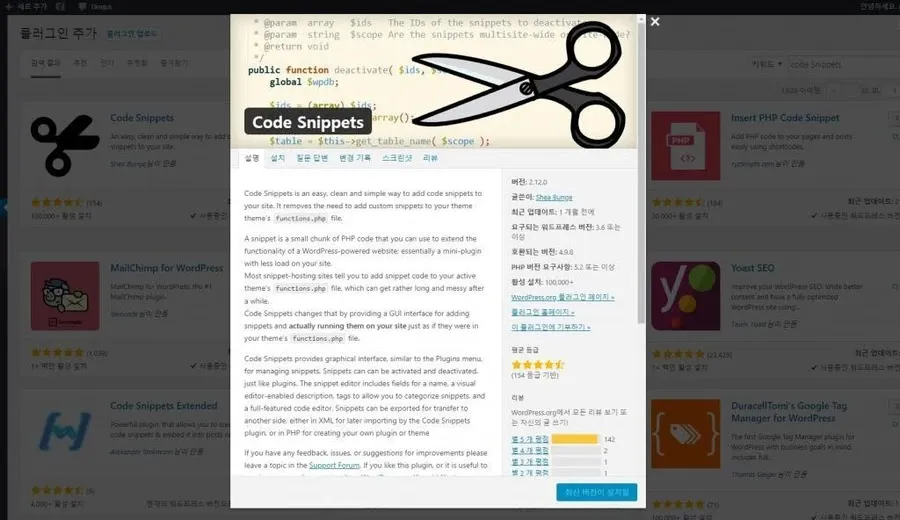
For that reason, I prefer Code Snippets. It allows changes to be enabled or disabled without touching theme files.
Adding Custom KBoard Code Safely
Once Code Snippets is installed, custom board-related code can be managed from a dedicated editor.
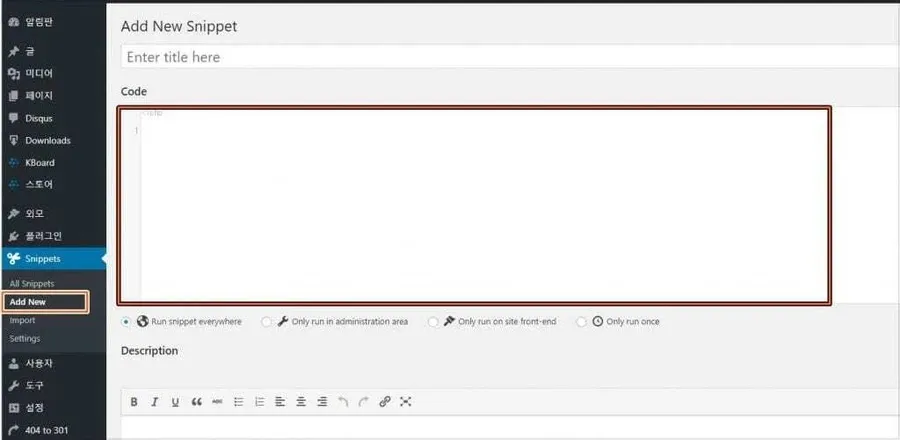
This approach makes troubleshooting much easier because changes can be isolated and tested individually.
The Real Cause Behind KBoard Search Indexing Problems
After checking page assignments, plugins, and RSS feeds, the actual issue appeared inside the sitemap configuration.
The sitemap plugin was not including KBoard content.
As a result, search engines had no reliable source for discovering new board posts.
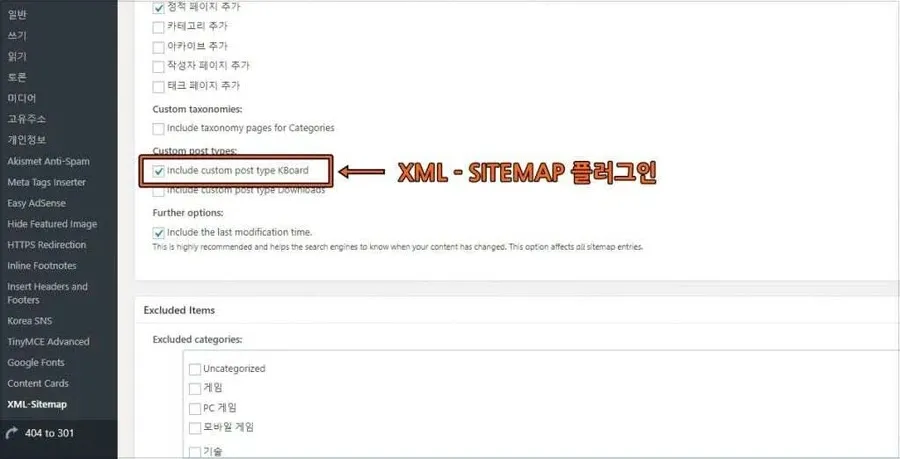
This single setting had the biggest impact on KBoard search indexing. Once KBoard URLs were included, sitemap updates started reflecting board content correctly.
Changes After the Fix
After enabling KBoard sitemap support and verifying RSS submission, several improvements became noticeable.
- Board URLs began appearing in search indexing reports
- New posts were discovered faster
- Sitemap updates reflected recent content
- Search visibility gradually increased
- Site structure became easier for search engines to understand
The improvement was not immediate. In my case, noticeable indexing activity appeared within a few days.
For most sites, KBoard search indexing improves gradually rather than instantly.
Final Thoughts
Many people assume KBoard installation ends when the board appears on the screen. In reality, KBoard search indexing depends on several additional steps that are easy to overlook.
The page must be connected properly, the sitemap must include KBoard URLs, and RSS submissions should be verified. Once those pieces are working together, search engines can finally discover the content that was already sitting on the site.
For WordPress sites running OpenLiteSpeed and LiteSpeed Cache, checking sitemap behavior should be one of the first troubleshooting steps whenever KBoard search indexing problems appear.
FAQ
Why are my KBoard posts not appearing in Google?
The most common cause is that KBoard URLs are missing from the XML sitemap, preventing search engines from discovering them efficiently.
Does LiteSpeed Cache affect KBoard search indexing?
Indirectly, yes. Cached sitemap files or delayed cache refreshes can sometimes prevent updated board URLs from appearing immediately.
How long does KBoard search indexing take after fixing the sitemap?
Many sites begin showing activity within 2–7 days, although timing depends on crawl frequency and site authority.