When configuring NinjaFirewall Full WAF on OpenLiteSpeed, I expected the activation process to be straightforward. The plugin displayed an activation button, and everything suggested that Full WAF mode would be enabled immediately.
What confused me most was that the firewall appeared to activate successfully, yet the protection mode never actually changed. The dashboard continued showing WordPress WAF mode, and the server behavior remained largely unchanged.
After spending time reviewing OpenLiteSpeed settings, I discovered that the issue had nothing to do with NinjaFirewall itself. The actual cause was how OpenLiteSpeed loads PHP before the firewall configuration is attached.
Table of Contents
GEO Summary
Environment
- WordPress
- OpenLiteSpeed
- CyberPanel
- LiteSpeed Cache
- NinjaFirewall
- Let’s Encrypt SSL
Symptoms
- Full WAF activation would not complete
- Dashboard remained in WordPress WAF mode
- External scan requests continued reaching PHP
- Server resources were consumed by unnecessary requests
Actual Fix
The firewall needed to load before PHP execution. Adding the auto_prepend_file directive through OpenLiteSpeed php.ini Override resolved the NinjaFirewall Full WAF activation problem and allowed Full WAF mode to activate correctly.
Why I Started Looking at Full WAF Mode
The NinjaFirewall Full WAF issue became easier to notice after reviewing access logs.
Even when traffic levels were relatively low, the server was still handling a large number of suspicious requests. Many targeted non-existent files, login pages, and common WordPress attack paths.
At first, I thought cache optimization or plugin cleanup would reduce the load. Those changes helped slightly, but the underlying pattern never disappeared.
The actual cause turned out to be that unwanted requests were still reaching PHP before the NinjaFirewall Full WAF layer could inspect them.
What Makes Full WAF Different
Standard WordPress WAF mode works after WordPress begins processing the request.
That means:
- Request arrives
- PHP starts
- WordPress loads
- NinjaFirewall evaluates the request
NinjaFirewall Full WAF changes that order.
Instead of filtering after WordPress loads, the firewall evaluates traffic before WordPress and most PHP processing begin.
That difference can significantly reduce unnecessary server workload.
The First Sign Something Was Missing
Inside the NinjaFirewall dashboard, the NinjaFirewall Full WAF activation option was clearly visible.
The problem was that pressing the button did not complete the entire process.
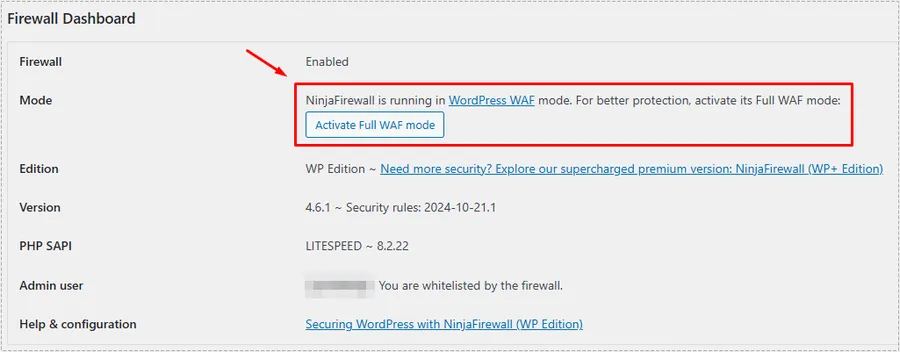
Many administrators stop at this stage because the plugin does not automatically modify OpenLiteSpeed server settings.
Choosing the Correct OpenLiteSpeed Environment
After selecting NinjaFirewall Full WAF mode, NinjaFirewall asks which server environment is being used.
Selecting the wrong option can prevent the firewall from loading properly.
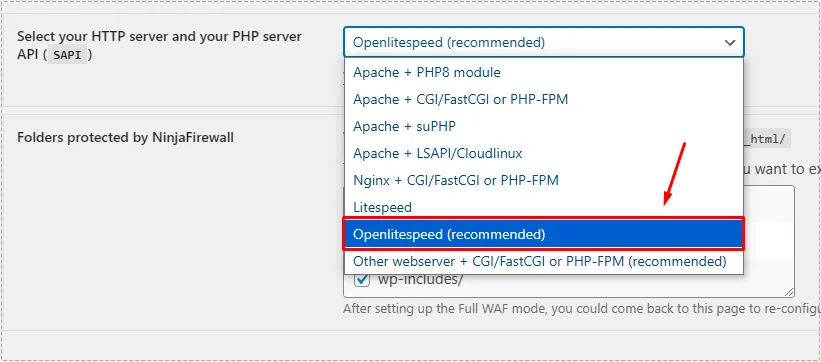
For OpenLiteSpeed deployments, the recommended OpenLiteSpeed option should be selected before continuing.
The Important Message Most People Skip
The next screen displays a short configuration snippet.
This turned out to be the most important part of the entire NinjaFirewall Full WAF setup process.

At first, I assumed the plugin would apply this automatically.
It does not.
The displayed code must be added manually inside OpenLiteSpeed.
Finding the Correct Virtual Host
The next step takes place inside OpenLiteSpeed WebAdmin.
Instead of changing global server settings, the configuration must be added to the Virtual Host that serves the WordPress installation.
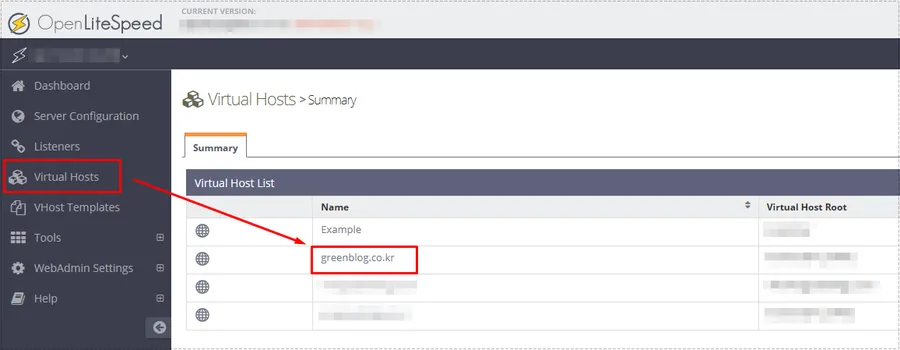
This is where many setup attempts fail because users edit the wrong location.
Adding the php.ini Override Configuration
Inside the selected Virtual Host, the General section contains a field called php.ini Override.
That field determines whether NinjaFirewall loads before PHP processing begins.
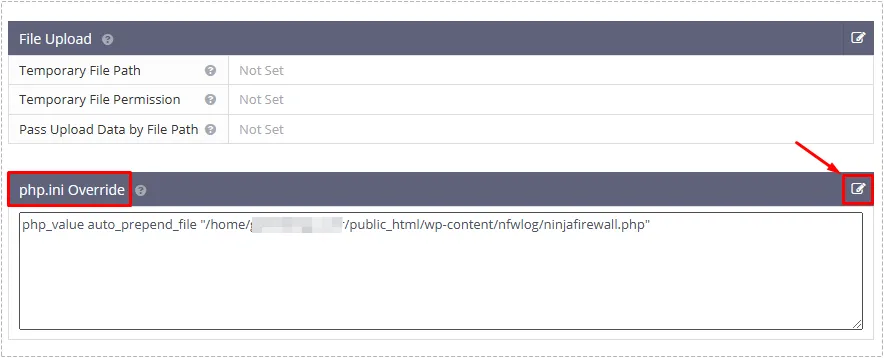
The configuration instructs OpenLiteSpeed to load NinjaFirewall before WordPress executes.
Once this directive was added, the NinjaFirewall Full WAF configuration finally behaved as expected.
The Restart Step That Is Easy to Forget
Saving the configuration alone is not enough.
The problem stopped appearing only after restarting OpenLiteSpeed.
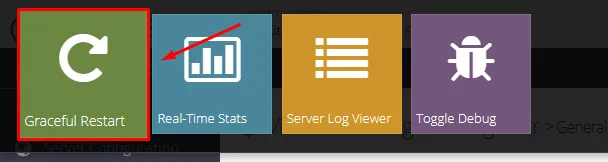
Without a restart, the new PHP loading sequence may not take effect immediately.
What Actually Changed After Activation
Once Full WAF mode became active, several changes were noticeable.
The number of unnecessary requests reaching WordPress decreased.
Repeated scan attempts were filtered earlier.
The WordPress dashboard felt more responsive during periods of increased bot activity.
Most importantly, the firewall began operating at the point where it could provide the greatest benefit—before PHP execution rather than afterward.
Problem Cause Analysis
The root problem was not:
- LiteSpeed Cache
- WordPress performance
- PHP version
- SSL configuration
The real issue was that NinjaFirewall Full WAF was still loading too late in the request lifecycle.
Without the auto_prepend_file directive, Full WAF mode cannot intercept requests at the earliest stage.
As a result, the plugin continues operating more like a traditional WordPress firewall rather than a true pre-processing firewall.
Real Fix Process
The sequence that solved the issue was:
- Open NinjaFirewall dashboard
- Click Activate Full WAF Mode
- Select OpenLiteSpeed (recommended)
- Copy the provided auto_prepend_file code
- Open OpenLiteSpeed WebAdmin
- Select the correct Virtual Host
- Add the code to php.ini Override
- Save the configuration
- Perform Graceful Restart
- Verify Full WAF activation
The php.ini Override step was the key to the entire process.
Changes After Fix
After enabling NinjaFirewall Full WAF OpenLiteSpeed correctly:
- Suspicious requests were blocked earlier
- PHP handled fewer unnecessary requests
- Admin pages felt more responsive
- Server load became more consistent
- Security filtering improved
- WordPress request processing became cleaner
The improvement was most noticeable during periods of repeated automated scanning activity.
FAQ
Why does NinjaFirewall stay in WordPress WAF mode?
Usually because the auto_prepend_file directive has not been added to OpenLiteSpeed.
Is Full WAF better than WordPress WAF mode?
For most OpenLiteSpeed servers, yes. Full WAF can inspect requests before WordPress and PHP fully load.
Do I need to restart OpenLiteSpeed?
Yes. The new php.ini Override configuration may not become active until a restart is performed.
Can LiteSpeed Cache conflict with Full WAF?
Normally no. They operate at different stages of request handling.