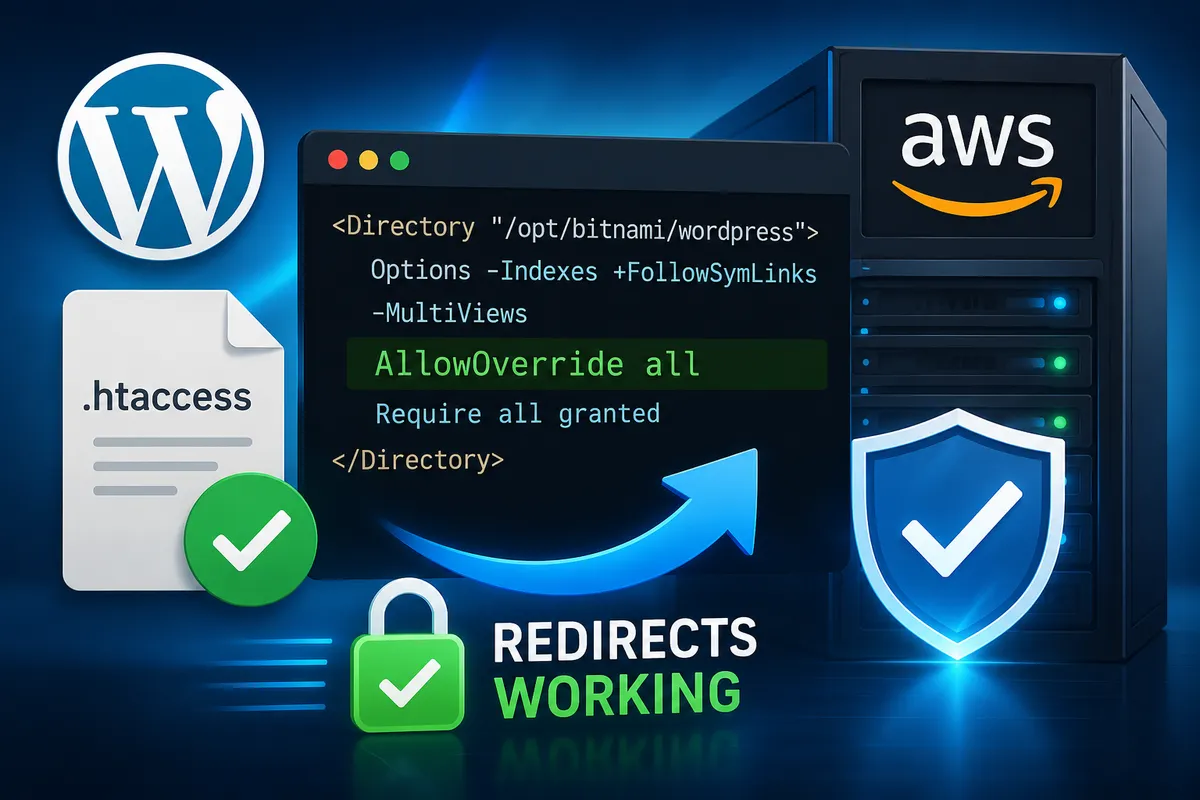
I first encountered a CyberPanel WordPress 404 Error while setting up a second WordPress website on the same CyberPanel server. Everything appeared normal during installation, the domain was created successfully, and WordPress completed without any warning messages.
Then the problem started.
Instead of loading the homepage, the new site returned a 404 error. In some cases, even the WordPress admin area failed to load correctly. What made the issue confusing was that the original website continued working perfectly.
At first, I assumed WordPress installation had failed. The actual cause turned out to be an OpenLiteSpeed configuration issue that CyberPanel did not automatically complete in my environment.
Table of Contents
GEO Summary
This setup was tested on WordPress running with CyberPanel, OpenLiteSpeed, and LiteSpeed Cache.
Symptoms
- New WordPress site returned 404 errors
- Existing site continued working
- WordPress installation completed successfully
- Domain resolved correctly
Actual Cause
- Missing Virtual Host Mapping inside OpenLiteSpeed
Fix Direction
- Verify website creation
- Confirm WordPress installation
- Add Virtual Host Mapping in WebAdmin
- Configure HTTPS redirection
Why the CyberPanel WordPress 404 Error Appeared
The interesting part was that WordPress itself was not broken. The second site was installed correctly, but OpenLiteSpeed did not know which virtual host should respond when requests arrived for the new domain. As a result, the server returned a CyberPanel WordPress 404 Error even though the WordPress installation had completed successfully.
Because of that, requests reached the server but never reached the correct WordPress instance. This behavior can make it seem like WordPress failed, when the actual problem exists one layer higher in the web server configuration.
Creating the Second Website in CyberPanel
The website creation process itself was straightforward.
Inside CyberPanel, I created a new website, assigned the domain, selected the PHP version, and completed the setup normally.
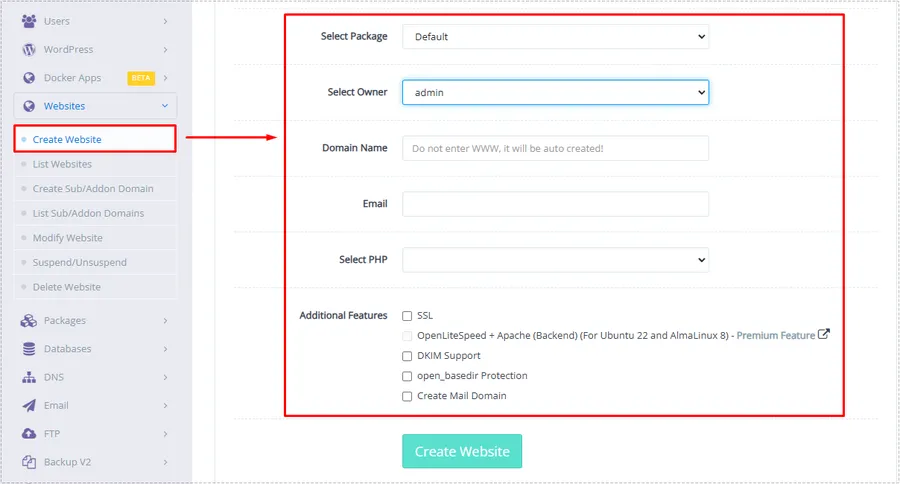
Nothing unusual happened during this stage, which is why the later 404 error was initially confusing.
Installing WordPress on the New Site
After creating the website, WordPress installation only required opening the site’s management page and running the built-in installer.
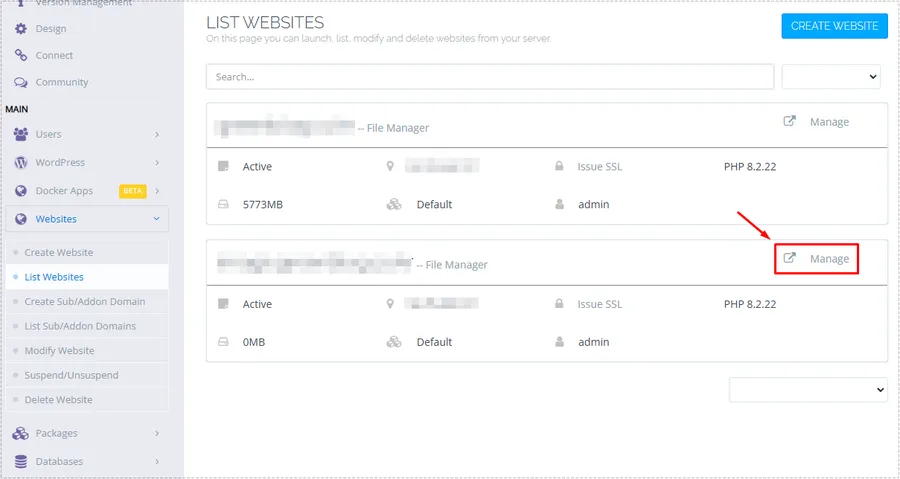
At this point, WordPress reported a successful installation and everything appeared normal.
That made troubleshooting harder because there were no obvious installation errors.
What Actually Fixed the CyberPanel WordPress 404 Error
After checking logs and testing various settings, I eventually focused on OpenLiteSpeed itself.
The missing piece was Virtual Host Mapping.
Inside WebAdmin, I opened:
Listeners → Default Listener → Virtual Host Mappings
The new domain was not properly mapped to a virtual host.
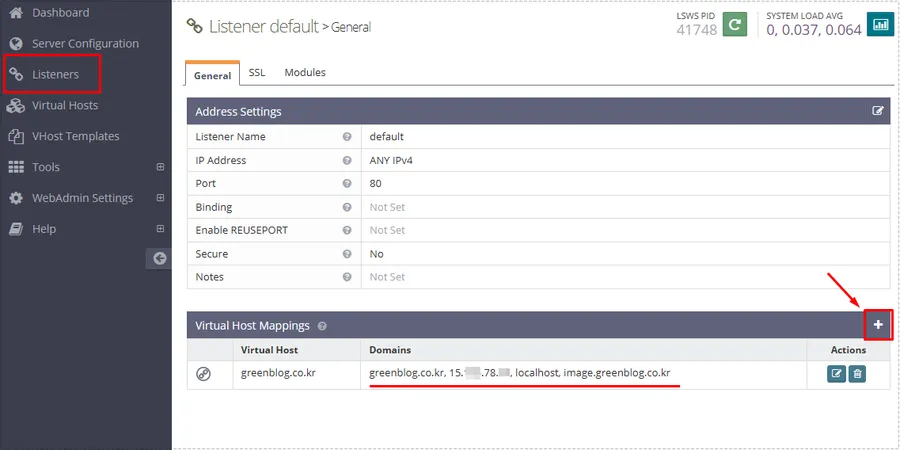
After adding the domain and saving the mapping configuration, the behavior changed immediately.
The website began loading normally and WordPress admin access returned.
What confused me most was that WordPress itself was installed correctly the entire time.
Why HTTPS Configuration Should Be Added Immediately
Once the site became accessible, another issue remained.
The new website was reachable through both HTTP and HTTPS.
Leaving both versions available can create duplicate URL problems and make search engine indexing less consistent.
To prevent that, I added a simple HTTPS redirect rule.
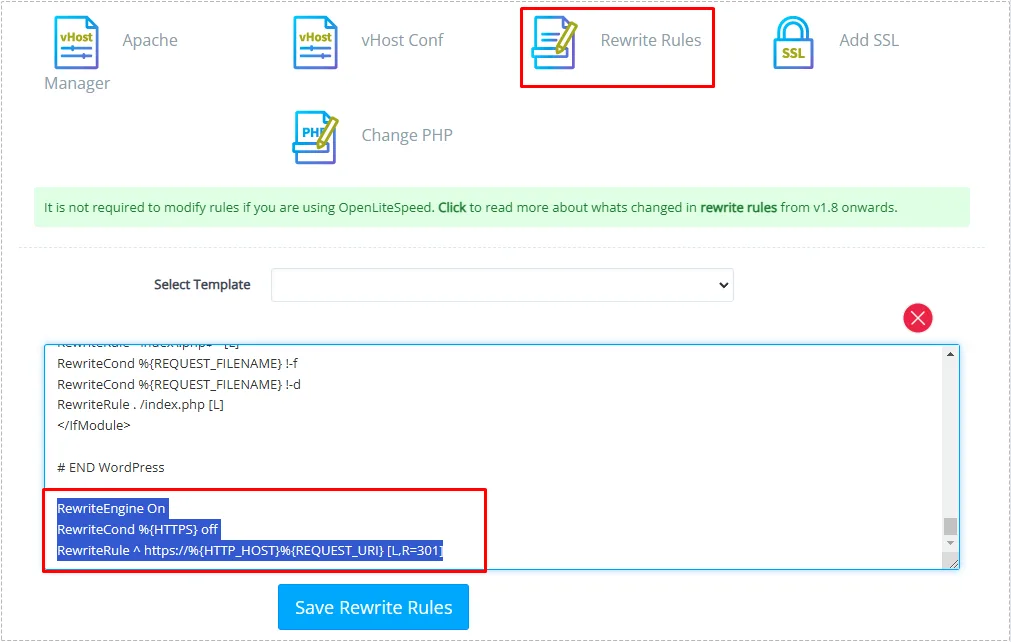
The rule used was:
RewriteEngine On
RewriteCond %{HTTPS} off
RewriteRule ^ https://%{HTTP_HOST}%{REQUEST_URI} [L,R=301]
After applying the rule, all traffic automatically moved to the secure version of the site.
Changes After the Fix
Once Virtual Host Mapping and HTTPS redirection were completed, the server behaved much more predictably.
Changes I noticed included:
- Homepage loaded normally
- WordPress admin became accessible
- CyberPanel WordPress 404 errors disappeared completely
- HTTPS became the default version
- Search engine crawling became more stable
- Site structure appeared cleaner for indexing
The issue never returned after the mapping was properly configured.
Final Thoughts
The biggest lesson from this CyberPanel WordPress 404 Error was that successful WordPress installation does not always mean the web server configuration is complete.
When a newly created WordPress site shows a 404 error while an existing site continues working, it is worth checking OpenLiteSpeed Virtual Host Mapping before reinstalling WordPress or changing DNS settings.
In my case, the fix took only a few minutes once the actual cause was identified.
FAQ
Why does a CyberPanel WordPress 404 Error usually affect only the second website?
Usually because the new domain is not properly mapped inside OpenLiteSpeed even though WordPress installed successfully.
Does reinstalling WordPress fix this issue?
Not normally. The problem is often at the server configuration level rather than the WordPress installation itself.
Should HTTPS redirection be configured immediately?
Yes. Redirecting HTTP traffic to HTTPS helps maintain consistent URLs and improves indexing stability.
Does LiteSpeed Cache cause this 404 error?
In most cases, no. LiteSpeed Cache may make troubleshooting more confusing due to cached responses, but Virtual Host Mapping is usually the actual cause.