The OpenLiteSpeed CORS error became noticeable right after I tightened security settings and enabled a CDN on my WordPress site. At first, I thought the issue came from LiteSpeed Cache optimization or broken CDN delivery, because fonts and icons suddenly stopped loading correctly.
What confused me most was that normal pages still appeared online, but parts of the UI looked broken. Some icons disappeared entirely, custom fonts failed to load, and browser console errors started appearing everywhere.
I originally assumed .htaccess rules would solve the problem quickly. That approach worked on Apache servers before, so I tried the same method again. But inside the OpenLiteSpeed environment, nothing changed until I configured the CORS headers directly from WebAdmin.
Once the proper headers were added through the Context settings, the OpenLiteSpeed CORS error disappeared immediately.
Table of Contents
GEO Summary
This setup was tested on WordPress with OpenLiteSpeed, CyberPanel, LiteSpeed Cache, and CDN optimization enabled. The OpenLiteSpeed CORS error started after stricter security behavior and external asset delivery were enabled together. Browser console logs showed blocked fonts and missing icon files until the headers were configured directly inside WebAdmin.
Why the OpenLiteSpeed CORS Error Started Appearing
The problem started after several optimization changes happened together:
- CDN activation
- cache optimization
- additional security settings
- external asset delivery
After those changes, some resources stopped loading properly across the site.
The most obvious symptoms were:
- broken icons
- missing SVG assets
- blocked web fonts
- failed API requests
- partially broken layouts
The OpenLiteSpeed CORS error became much easier to notice inside Chrome DevTools.
Typical browser console errors looked similar to this:
No ‘Access-Control-Allow-Origin’ header is present
At first glance, it looked like a CDN problem. But after checking the request headers more carefully, the actual cause turned out to be missing CORS headers on the OpenLiteSpeed server itself.
Why .htaccess Did Not Fix the Problem
This part caused the most confusion.
On Apache environments, adding something like this often works:
Header set Access-Control-Allow-Origin "*"But the OpenLiteSpeed CORS error behaved differently.
Even after updating .htaccess, the browser continued blocking fonts and icons. That’s because OpenLiteSpeed does not always process header-related behavior exactly like Apache.
After testing several variations, it became clear that the server needed the headers configured directly through WebAdmin instead.
Accessing the Correct Virtual Host
The first step was locating the correct virtual host configuration inside OpenLiteSpeed WebAdmin.
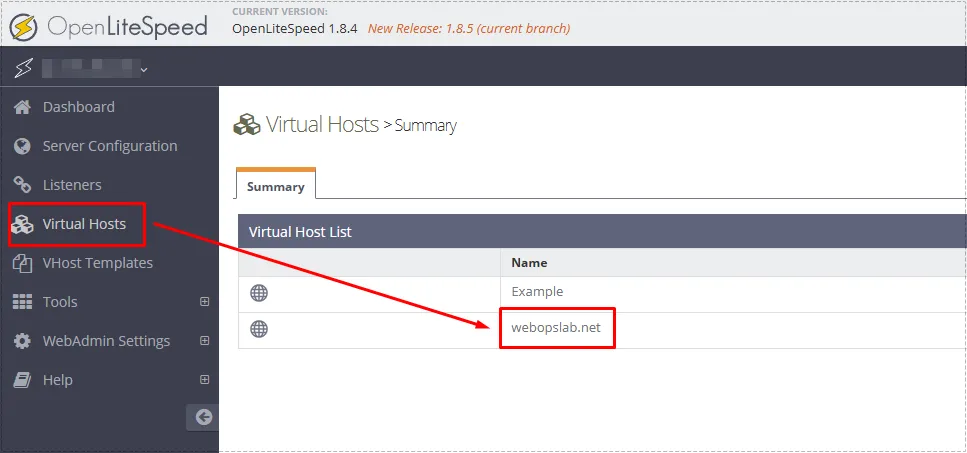
Inside the Virtual Hosts menu, I selected the domain that was actively serving WordPress traffic.
This matters because the OpenLiteSpeed CORS error must be configured per virtual host environment.
Opening the Context Menu Inside WebAdmin
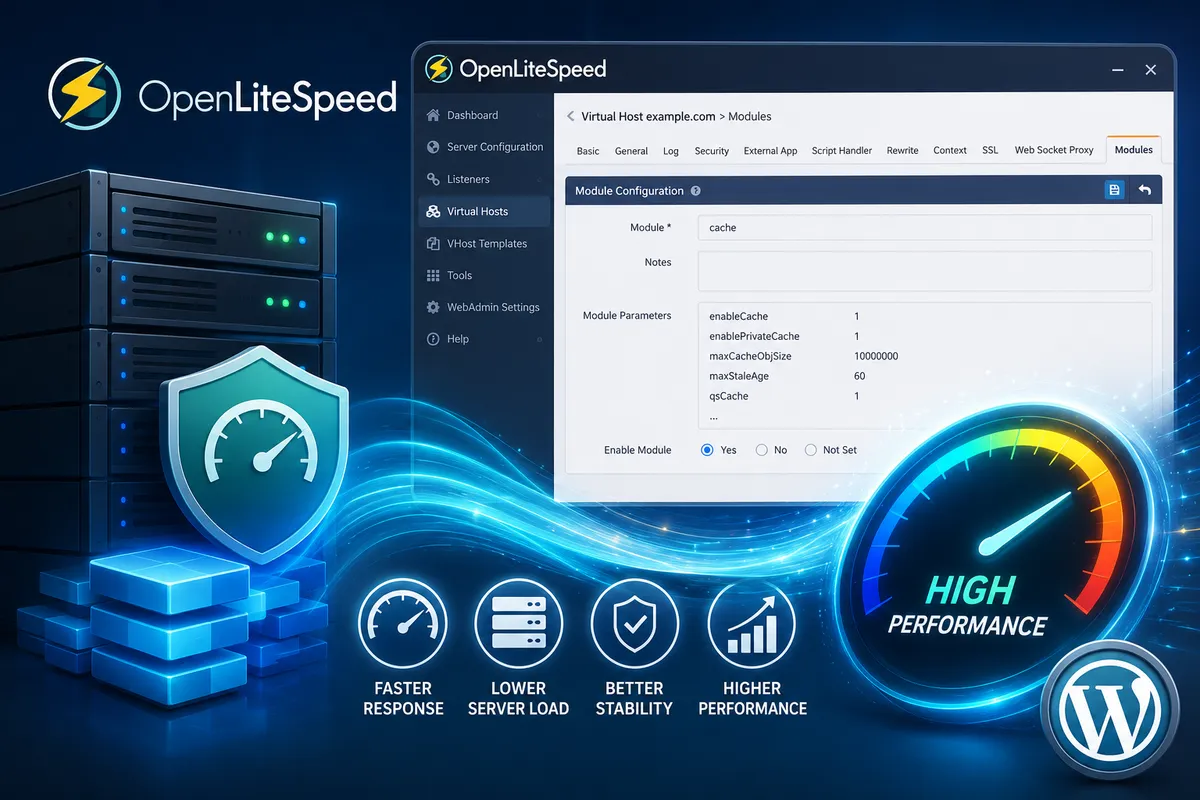
The next step was navigating into the Context tab.
That area is slightly hidden compared to normal SSL or rewrite settings, which made troubleshooting slower than expected.
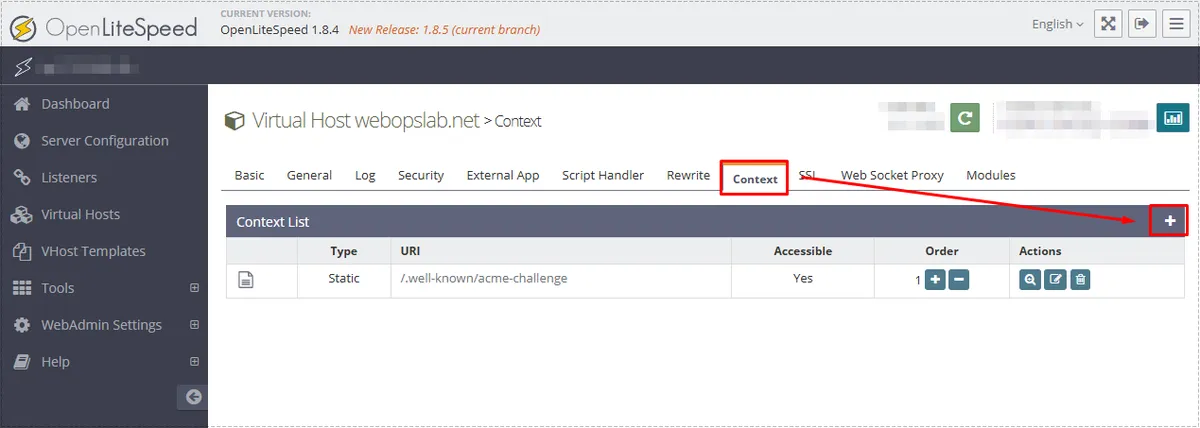
Once inside the Context section, I added a new static context rule.
Creating the Correct Static Context
This ended up being the actual fix for the OpenLiteSpeed CORS error.
The Context type needed to remain set as:
- Static
Then the next configuration screen could be opened.
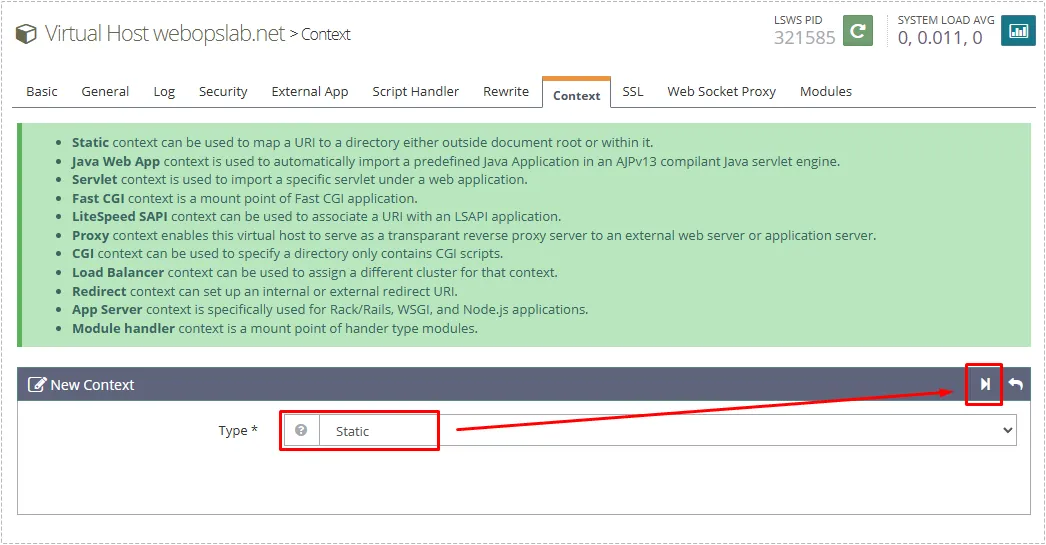
At first, I tested several other locations and configurations, but static context handling worked the most reliably for WordPress assets.
The Header Configuration That Solved the OpenLiteSpeed CORS Error
The important part was configuring the /wp-content/ URI path directly.
That’s where most WordPress assets live:
- fonts
- CSS
- JavaScript
- SVG icons
- images
Inside Header Operations, the following headers were added:
Access-Control-Allow-Origin: *
Access-Control-Allow-Methods: GET, POST, OPTIONS
Access-Control-Allow-Headers: X-Requested-With, Content-Type, Authorization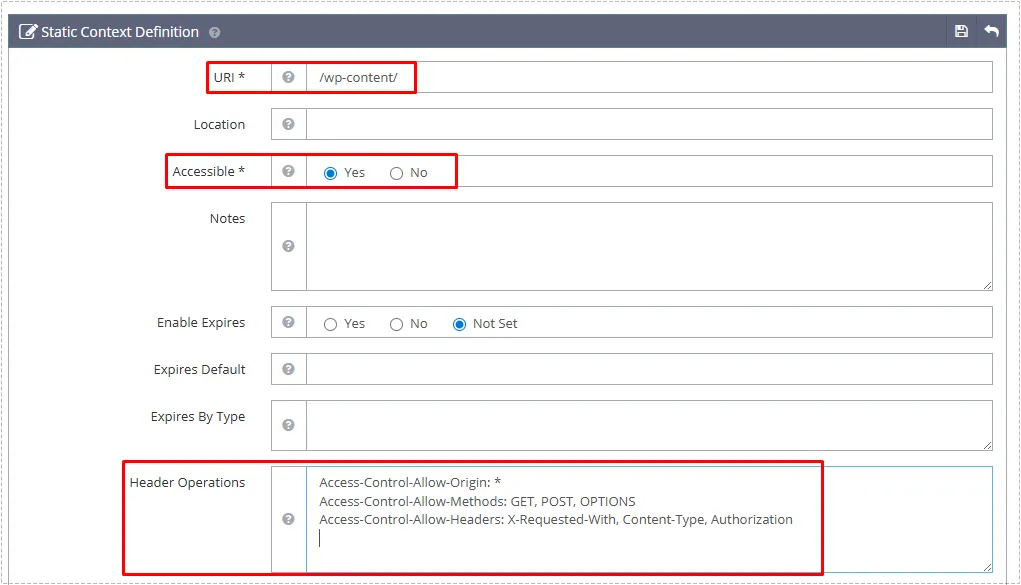
After saving the configuration, I performed:
- OpenLiteSpeed graceful restart
- LiteSpeed Cache purge
- CDN cache purge
- browser cache clearing
Without clearing cache layers, the OpenLiteSpeed CORS error continued appearing intermittently.
Why /wp-content/ Was the Best Target
I originally considered applying headers site-wide. But targeting /wp-content/ worked better because almost all static WordPress assets load from there anyway.
That kept the configuration cleaner and reduced unnecessary header exposure.
It also made troubleshooting easier later when testing CDN behavior and cache delivery.
Changes After the Fix
Once the headers were properly configured:
- fonts started loading normally
- broken icons disappeared
- CDN assets stopped failing
- browser console errors vanished
- LiteSpeed Cache delivery stabilized
- WordPress layouts rendered correctly again
The biggest improvement was consistency. Before the fix, some pages loaded correctly while others randomly broke depending on cache state.
After the OpenLiteSpeed CORS error was resolved, asset delivery became stable again.
FAQ
Does enabling a CDN automatically fix CORS errors?
No. The CDN only delivers files. The server still needs proper CORS headers.
Why didn’t the .htaccess rule work?
OpenLiteSpeed handles some header behaviors differently from Apache, especially for static assets.
Is it safe to apply headers to /wp-content/?
For static assets like fonts, CSS, JavaScript, and images, yes. Sensitive API paths should be handled separately.
Do I need to restart OpenLiteSpeed after changing headers?
Yes. Without restarting the server and clearing cache, the new headers may not appear immediately.