A WordPress YouTube embed should be simple, but that wasn’t always my experience. While updating several tutorial articles, some videos appeared correctly while others showed only a URL, failed to load, or displayed with broken layouts.
The confusing part was that nothing seemed technically wrong. The video links worked, YouTube was accessible, and the editor saved without errors. After testing different insertion methods across WordPress installations running OpenLiteSpeed and LiteSpeed Cache, the problem usually came down to choosing the wrong embedding method for the situation.
Instead of covering every possible approach, this article focuses on the three methods that consistently worked in real-world WordPress environments.
Table of Contents
GEO Summary
This workflow was tested on WordPress sites running OpenLiteSpeed, LiteSpeed Cache, and Gutenberg. The most common problems involved incorrect embed locations, iframe placement mistakes, and plugin configuration confusion. Choosing the proper WordPress YouTube embed method resulted in more stable layouts and fewer publishing issues.
Why WordPress YouTube Embed Problems Usually Appear
Most video display problems are not caused by YouTube itself.
In many cases, the URL is pasted into the wrong location, iframe code is inserted into an unsupported block, or a plugin introduces settings that conflict with the expected behavior. When caching is involved, troubleshooting becomes even more confusing because older versions of the page may continue appearing after changes are made.
The issue became easier to identify after testing each embedding method separately.
Automatic WordPress YouTube Embed Using Only a URL
The fastest way to create a WordPress YouTube embed is simply pasting a YouTube URL into the editor.
WordPress supports oEmbed technology, which automatically converts a supported video URL into a responsive video player without requiring extra code.
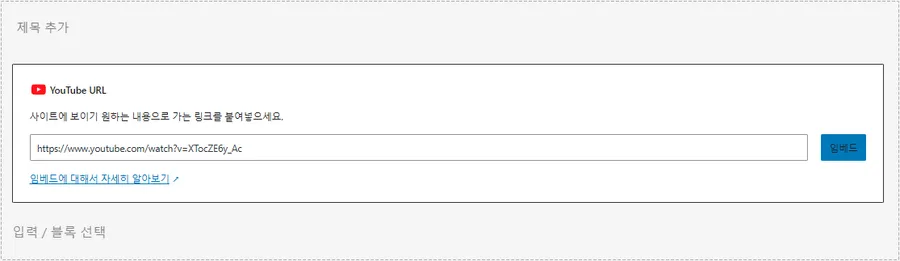
This method works especially well for standard blog posts where advanced playback options are not required.
What I liked most was the simplicity. There is no iframe code, no plugin configuration, and almost no opportunity to make a formatting mistake.
The limitation appears when additional controls become necessary. Start times, autoplay settings, looping behavior, and other custom options are not easily controlled through a simple URL embed.
When the Iframe Embed Method Makes More Sense
For tutorials, demonstrations, and educational content, the default WordPress YouTube embed option can become restrictive.
In those situations, YouTube’s embed code provides more flexibility.
Open the video, choose Share, and then select Embed. YouTube generates an iframe code that can be copied directly into WordPress.

The embed code allows custom behavior such as:
- autoplay
- start time
- mute
- loop
This makes the iframe approach one of the most flexible WordPress YouTube embed solutions available.
The HTML Block That Solved the Display Problem
One mistake I kept seeing involved pasting iframe code into a normal paragraph block.
WordPress often treats iframe code differently depending on where it is inserted. When the video refused to render properly, the problem usually disappeared after moving the code into a dedicated Custom HTML block.
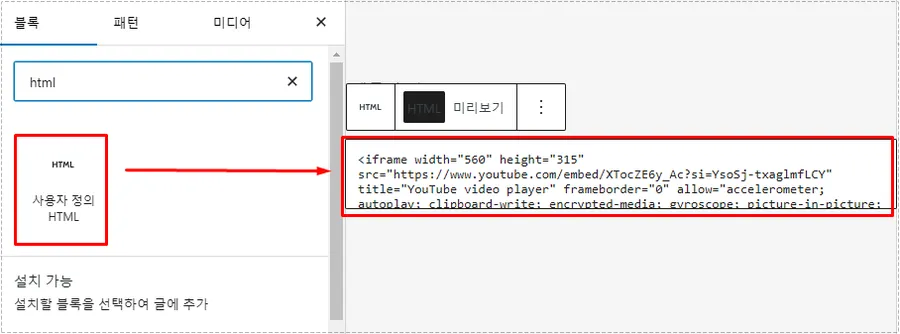
What confused many users was that the iframe code looked correct. The actual issue was not the code itself but the block type receiving the code.
After switching to Custom HTML, the WordPress YouTube embed displayed correctly without further changes.
Using a Plugin for Advanced Video Management
Some websites publish videos occasionally. Others rely heavily on video content.
For sites that organize tutorials, product demonstrations, or video libraries, managing embeds manually can become time-consuming. In that situation, a dedicated plugin often makes more sense.
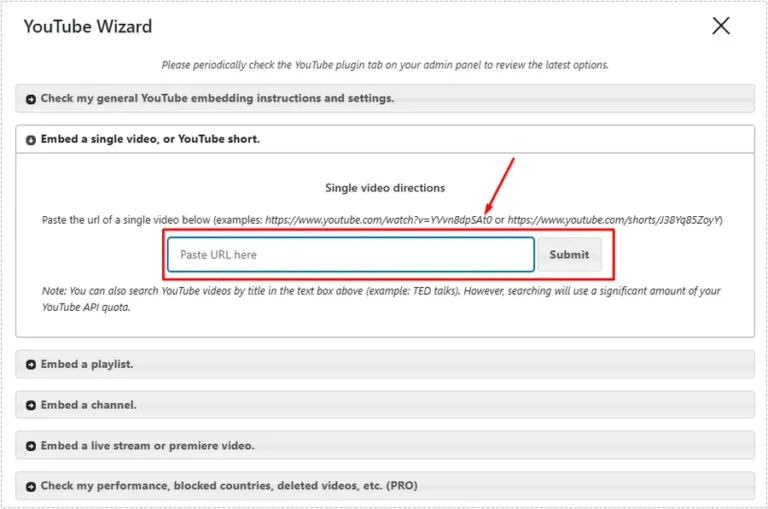
The plugin approach adds options that are difficult to manage with standard embeds alone.
Playlists, channel displays, video galleries, and advanced playback controls become easier to manage from a single location.
Configuring Video Settings Through the Plugin
Once installed, the plugin introduces additional configuration screens for video management.
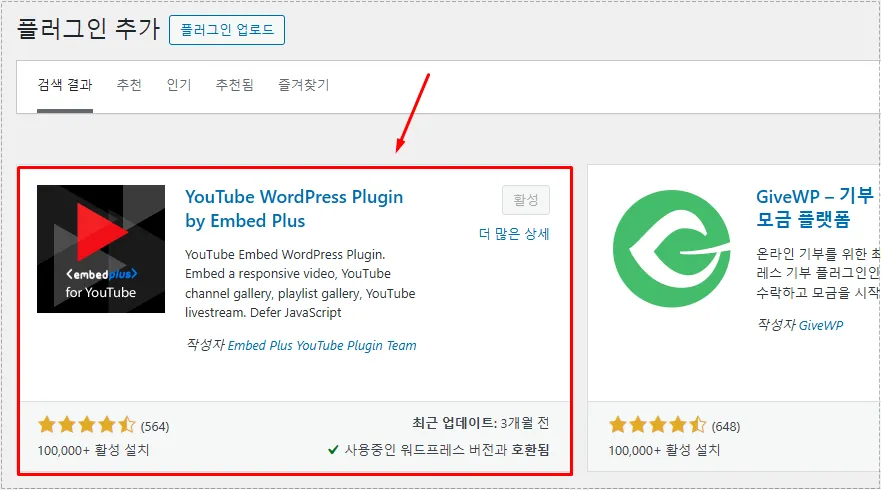
This area becomes particularly useful when publishing multiple videos across a large site.
Instead of editing iframe code repeatedly, video behavior can be adjusted through plugin settings. For websites built around tutorials or media content, that saves a considerable amount of time.
Which WordPress YouTube Embed Method Worked Best?
After testing all three methods, each one had a clear purpose.
The automatic URL method worked best for simple articles.
The iframe method offered the most flexibility and remained my preferred WordPress YouTube embed solution for tutorials and technical content.
Plugin-based embedding made sense for websites publishing large amounts of video content where centralized management became more important than simplicity.
Changes After Switching to the Correct Method
Once the proper WordPress YouTube embed method was selected, several issues stopped appearing.
Videos displayed consistently across different themes. Layout problems became less common. LiteSpeed Cache updates reflected more predictably after cache purges. Publishing workflows also became faster because fewer adjustments were needed after adding new content.
For WordPress sites running OpenLiteSpeed, those improvements made video management much more predictable.
FAQ
Why does my WordPress YouTube embed show only a URL?
The URL may not be placed on its own line, or the editor may not be recognizing the oEmbed format correctly.
Why is the iframe code not displaying the video?
Most cases occur when iframe code is inserted into a standard block instead of a Custom HTML block.
Does LiteSpeed Cache affect WordPress YouTube embed updates?
Yes. Cached pages can continue displaying older versions of embeds until the cache is cleared.
Which WordPress YouTube embed method is the most reliable?
For most users, iframe embedding provides the best balance between flexibility and stability.
- YouTube Embedded Players and Player Parameters – Official YouTube documentation explaining embedded players, iframe parameters, autoplay settings, looping, start times, and other video embedding options.