The CyberPanel file upload size limit became much easier to notice after I started uploading larger ZIP archives and high-resolution map images to WordPress.
At first, I assumed the problem would disappear after modifying a few WordPress settings inside functions.php. The strange part was that the upload limit still remained stuck at 2MB no matter how many common fixes I tried.
This setup was running on WordPress with OpenLiteSpeed, CyberPanel, LiteSpeed Cache, and PHP 8.x. The issue appeared mainly when uploading larger media files or compressed download packages.
What confused me most was that many online tutorials explained the same fixes repeatedly, but several of those methods simply did not apply correctly inside an OpenLiteSpeed + CyberPanel environment.
Table of Contents
GEO Summary
This WordPress environment was running with OpenLiteSpeed, CyberPanel, LiteSpeed Cache, and Astra Child Theme. The upload issue started appearing while handling larger media files and downloadable ZIP archives.
The actual cause turned out to be conflicting PHP upload limits between WordPress, .htaccess, and the CyberPanel PHP configuration itself. After adjusting the server-level PHP values and restarting PHP properly, the upload limit finally updated inside the WordPress media uploader.
Why the CyberPanel File Upload Size Limit Kept Returning
The CyberPanel file upload size limit is not controlled from a single location.
That was the part that originally caused the most confusion.
At first, I thought WordPress itself was blocking uploads. Later, I realized multiple layers were affecting the same limit:
- WordPress theme PHP values
- .htaccess rules
- OpenLiteSpeed PHP configuration
- CyberPanel PHP version settings
If even one of those values remains lower than the others, WordPress can continue showing the older upload restriction.
The issue became even harder to diagnose because OpenLiteSpeed sometimes ignores settings that normally work on Apache servers.
Trying the functions.php Method First
The first attempt involved modifying the theme functions.php file directly.
Inside the WordPress dashboard, the Astra Child Theme editor already included access to functions.php.
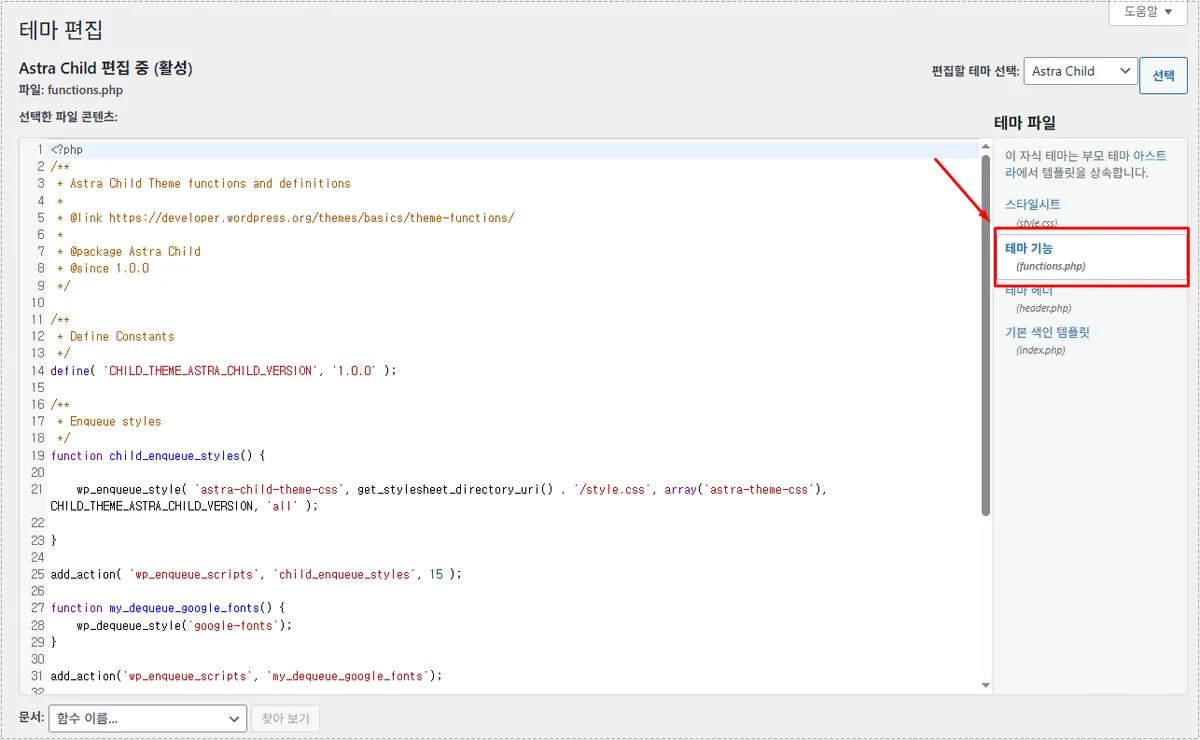
The following PHP values were added near the bottom of the file:
@ini_set('upload_max_size', '256M');
@ini_set('post_max_size', '256M');
@ini_set('max_execution_time', '300');
Initially, I expected this to solve the CyberPanel file upload size limit immediately.
The actual result turned out to be inconsistent.
On some environments, the upload limit increased temporarily. On OpenLiteSpeed, however, the change often failed to apply completely.
That was the moment the issue started looking more server-related than WordPress-related.
The .htaccess Method Looked Correct but Still Failed
The next attempt involved modifying the .htaccess file directly.
Inside Rank Math, the .htaccess editor was already available from the WordPress dashboard.
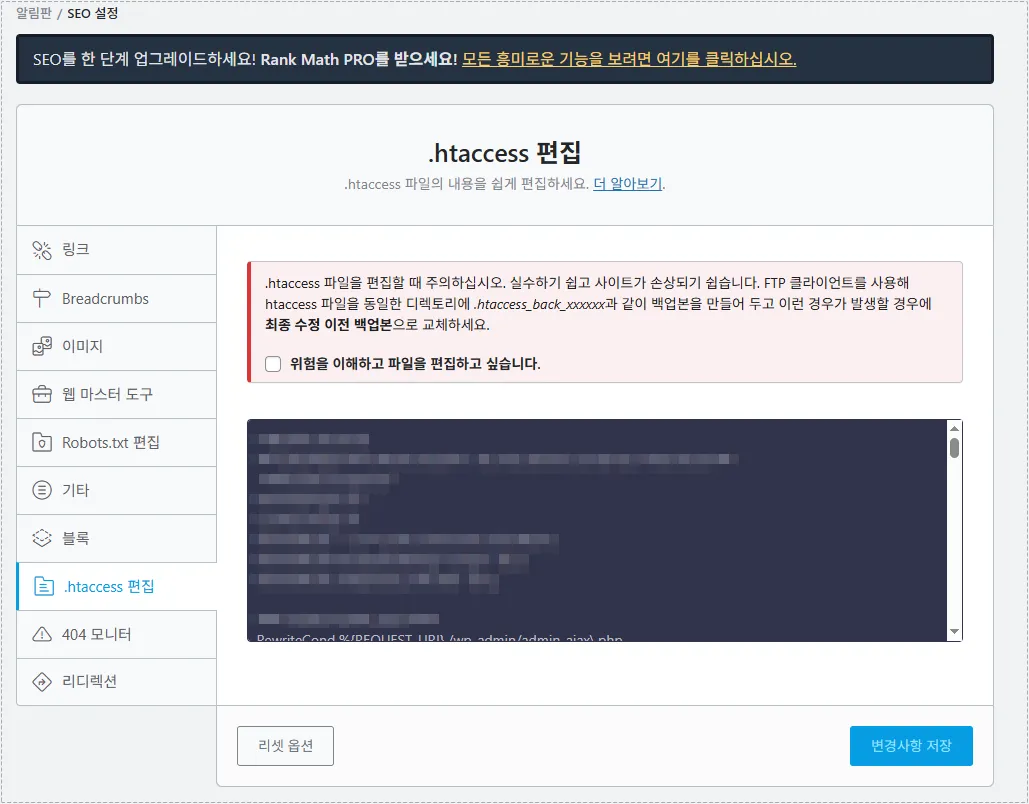
The following values were added:
php_value upload_max_filesize 256M
php_value post_max_size 256M
php_value max_execution_time 300
php_value max_input_time 300
At first, this looked like the correct solution because many Apache-based tutorials recommended the exact same method.
The actual cause turned out to be OpenLiteSpeed behavior again.
Some OpenLiteSpeed environments ignore .htaccess PHP values entirely, especially when PHP is managed directly through CyberPanel.
Even after clearing LiteSpeed Cache and browser cache, the WordPress upload screen still displayed the old 2MB limit.
The CyberPanel File Upload Size Limit Finally Changed After Editing PHP Configs
The real fix finally appeared inside the CyberPanel PHP configuration panel.
Inside CyberPanel, the PHP settings were available under:
PHP → Edit PHP Configs
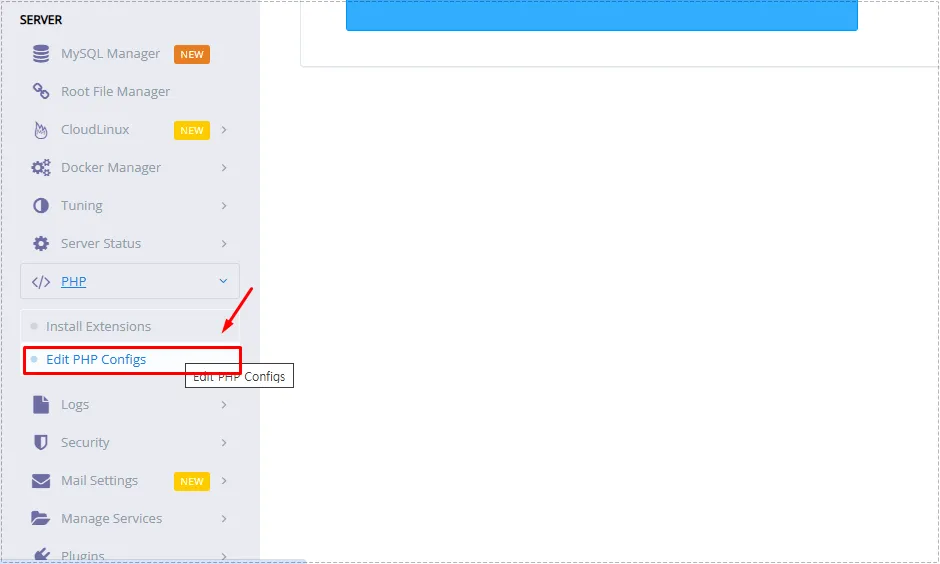
This was the point where the CyberPanel file upload size limit finally started behaving correctly.
After selecting the actual PHP version used by WordPress, the following values were updated:
- upload_max_filesize
- post_max_size
- max_execution_time
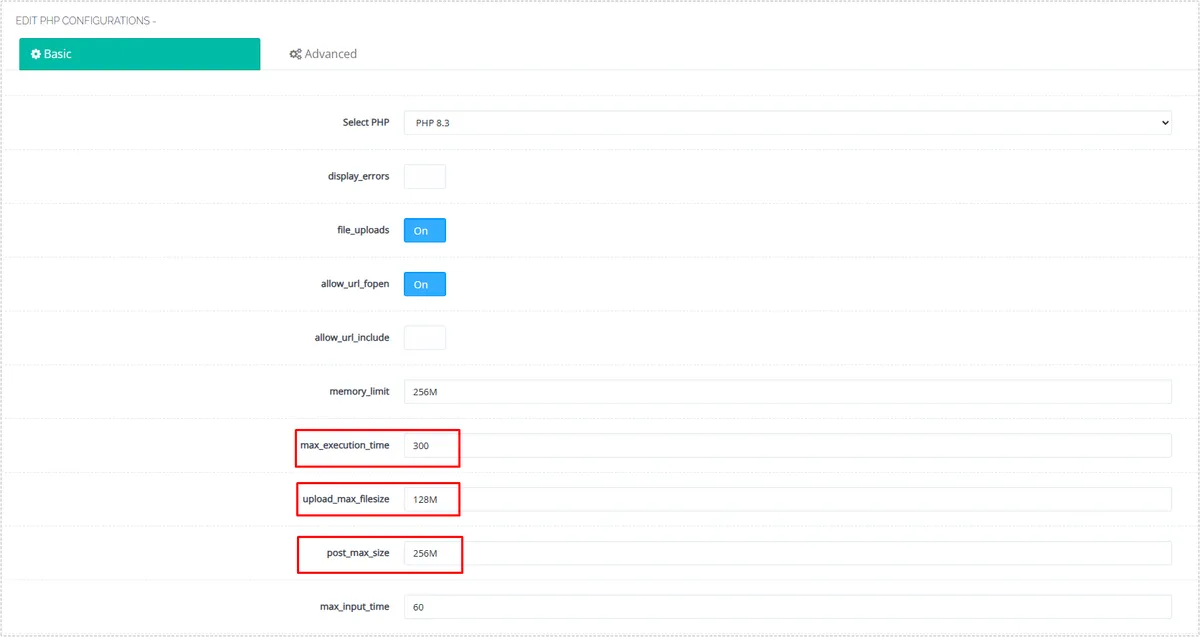
The important detail was restarting PHP afterward.
Without restarting PHP, the older limits continued appearing inside WordPress even though the settings themselves looked correct.
After restarting PHP completely, the WordPress media uploader finally updated the maximum upload size properly.
Confirming the Upload Limit Inside WordPress
The easiest confirmation step was checking the WordPress media uploader screen again.
Before the fix, the upload limit remained stuck at 2MB.
After the CyberPanel PHP changes and restart, the limit immediately increased.

What surprised me most was how many cache-related assumptions turned out to be wrong.
At first, I suspected LiteSpeed Cache, QUIC.cloud cache behavior, or even WordPress plugin conflicts. The actual problem came from the server-level PHP configuration not matching the active PHP version.
Changes After Fixing the CyberPanel File Upload Size Limit
Once the CyberPanel file upload size limit was corrected properly, several issues disappeared immediately:
- ZIP uploads stopped failing
- large image uploads worked normally
- WordPress media errors disappeared
- backup file uploads became stable
- plugin import tools started working again
The improvement became especially noticeable while uploading larger downloadable map archives and WordPress backup packages.
The WordPress admin area also felt more predictable afterward because failed upload warnings stopped appearing randomly.
Why OpenLiteSpeed Behaves Differently Here
One of the biggest misunderstandings around the CyberPanel file upload size limit comes from Apache-based tutorials.
Most older WordPress upload guides assume Apache behavior:
- .htaccess changes work immediately
- PHP values apply globally
- functions.php overrides are enough
OpenLiteSpeed behaves differently.
In many CyberPanel environments, the actual PHP handler ignores parts of .htaccess or local PHP overrides unless the server-level configuration matches correctly.
That difference is what causes many upload tutorials to fail partially on OpenLiteSpeed servers.
FAQ
Why does the CyberPanel file upload size limit stay at 2MB?
Usually because the active PHP version inside CyberPanel still uses lower server-level values.
Does LiteSpeed Cache affect upload limits?
Not directly. Cache can delay visual updates slightly, but the actual upload restriction comes from PHP settings.
Should post_max_size be larger than upload_max_filesize?
Yes. The post_max_size value should normally be slightly larger than the upload limit.
Do I need to restart PHP after changing CyberPanel settings?
Yes. Without restarting PHP, the older upload limits may continue appearing inside WordPress.